A free, browser-based blur for face that respects your privacy
When you need a quick blur for face on a photo — a friend you forgot to ask for permission, a kid in the background of a holiday shot, a stranger in a street photo — the last thing you want is to upload that picture to a random website. This tool keeps the photo on your device: open it, drop a circle or oval over the face, pick a blur strength, and save. Nothing is ever sent to a server, and the saved image is identical in size and format to what you uploaded.
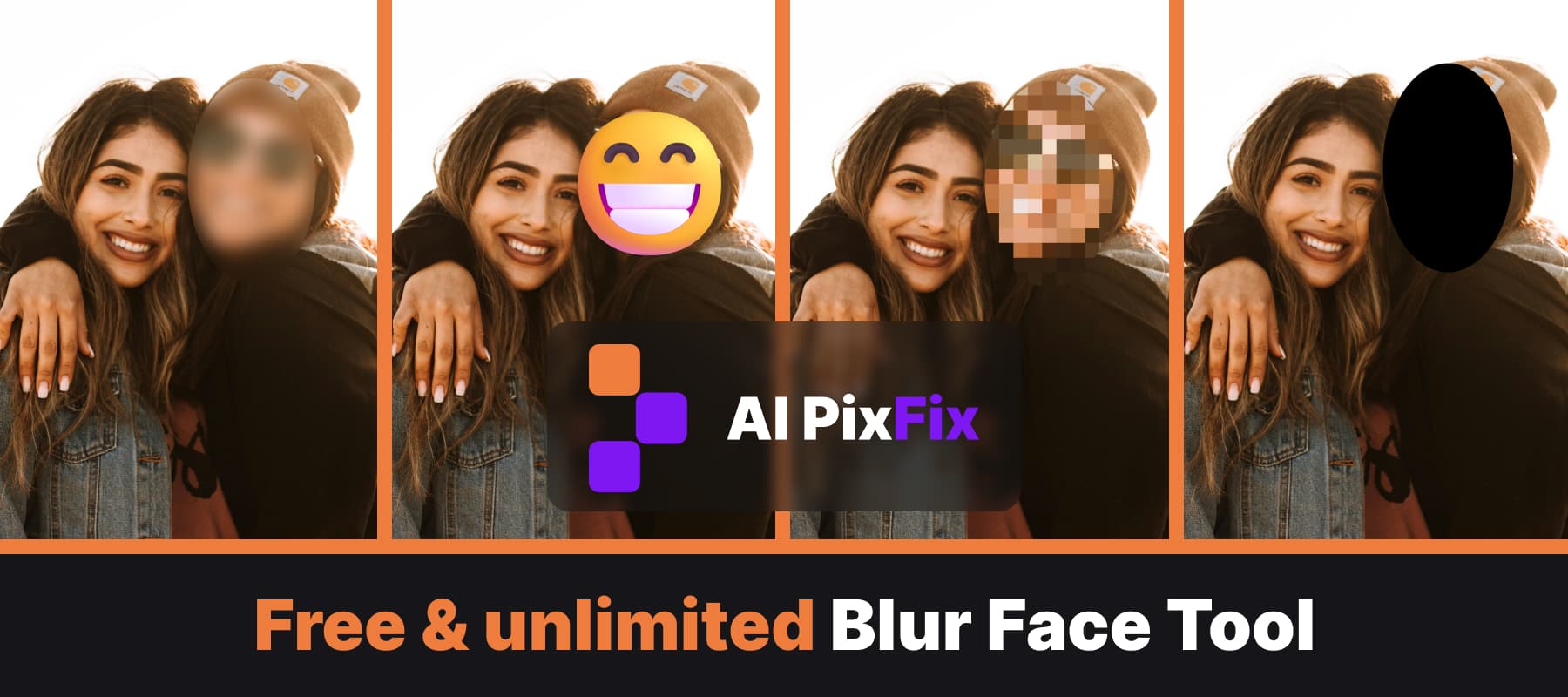
The blur face online editor is built around the idea that one shape rarely fits every photo. You can drop as many circles and ovals as you need — each one moves and resizes independently with corner handles — and each one can carry its own censor style. Cover one face with a soft transparent blur, hide another with a pixel mosaic, and slap a smiling emoji on a third, all in the same picture. There is no account to create and no per-image limit.
If you want to blur a face in a picture for social media, the transparent blur style is usually the cleanest choice — the background colours bleed through so the censor reads as intentional rather than as a clumsy black bar. A slider lets you push the blur from a gentle softening, just enough to break facial recognition, all the way up to a heavy frosted effect that obliterates every feature. The blur is recomputed in real time as you drag the slider, so you can stop exactly where the face stops being identifiable.
For a chunkier, retro look, face pixelate replaces the area inside the shape with a grid of large coloured squares — the classic mosaic censor used on TV. The squares-across slider lets you go from a handful of huge blocks for a stylised effect to forty fine squares that still hide identity while keeping the silhouette readable. When even pixels are too much, solid black wipes the face entirely; when censorship needs to look friendlier, switch the style to Emoji and pick a yellow face from the picker to drop it in place of the shape.
How to use
- 1Upload a photo — Drop a PNG, JPG, WebP, AVIF or HEIC photo to open the editor.
- 2Add a shape over the face — Click Circle or Oval to drop a shape in the centre of the photo, then drag it onto the face and resize it from the corner handles.
- 3Pick a censor style — Choose Transparent blur, Pixelate, Solid black or Emoji from the top bar. Adjust the blur strength or pixel-square count from the side panel.
- 4Save — Click Save result, then download the image at the original resolution and format with no watermark.
Frequently Asked Questions
Is this blur face tool free?
Yes — every blur, pixelate and emoji cover-up is free. No account, no daily cap, and the saved image has no watermark.
Do my photos get uploaded to a server?
No. The face blur runs entirely in your browser using JavaScript. Your photo never leaves your device.
Can I blur more than one face in a picture?
Yes. Click the circle or oval button as many times as you want — each new shape can be moved, resized, and given its own style.
What is the difference between blur and pixelate?
Transparent blur smoothly softens the area underneath the shape so the face becomes unrecognisable but the background colours stay. Face pixelate replaces the area with a grid of large coloured squares — sometimes called a mosaic censor. Pick whichever fits the look you want.
Can I cover a face with an emoji instead?
Yes. Switch the style to Emoji, pick a yellow face from the picker, and the shape becomes an emoji at exactly the same place and size — you can keep resizing it by the corner handles.