Sepia tone filters — free, in your browser
A sepia tone filter for any color photo — one click, no Photoshop, no account, nothing to install. Pick a filter from the toolbar, adjust the intensity slider until it looks right, and download at full original resolution. No watermark, no quality loss, no file size limit.
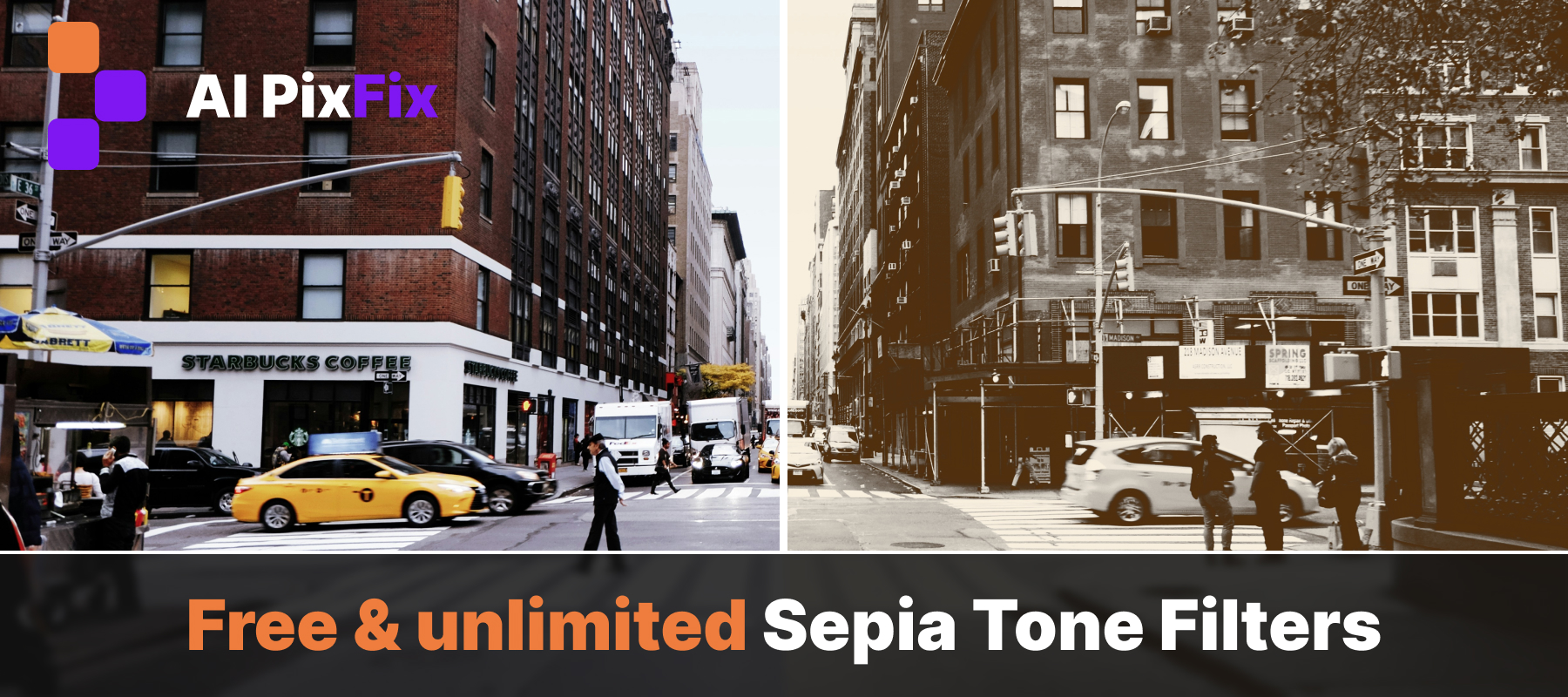
Each of the sepia tone filters uses a different combination of warmth, contrast, grain, and tint split — so the results vary widely depending on which one you choose. Some lean toward a classic warm brown, others go darker and more dramatic, others lift the shadows for a faded, nostalgic feel. The difference between a portrait that looks like a 19th-century print and one that just looks yellow is in those details.
Batch up to 10 photos at once. Apply a sepia tone to the whole set in one go — useful when you need a consistent vintage look across a series. Or unlock any individual photo and give it its own filter and intensity independently of the rest.
Everything runs locally in your browser — nothing is uploaded to a server, nothing is stored. Close the tab and it's gone. Free and unlimited, no sign-up required.
How to use
- 1Upload photos — Drop up to 10 JPG, PNG or WebP photos into the upload zone.
- 2Pick a sepia tone filter — Browse Classic, Vintage, Warm and Moody sepia filters in the top toolbar.
- 3Adjust intensity — Use the slider to blend the filter from 0% (color) to 100% (full sepia tone).
- 4Save — Click Save — each photo is exported at full original resolution, no archive.
Frequently Asked Questions
Is the sepia filter free?
Yes — every filter is completely free with no account, no daily limit, and no watermark on the saved photo.
Do my photos get uploaded to a server?
No. Everything runs locally in your browser. Your photos never leave your device and are never sent to any server.
How many photos can I convert at once?
Up to 10 photos per session. By default the same sepia tone filter is applied to all of them — you can unlock individual photos to give each its own look.
What is the difference between the sepia tone presets?
Each preset varies in warmth, contrast, grain, and tint split. Classic Sepia is a balanced warm brown; Antique goes deeper and richer with slight grain; Faded lifts the shadows for a washed-out feel; Wet Plate splits cool blue shadows against warm amber highlights; Golden Hour adds a bright, yellow-warm glow; Dark Sepia uses heavy vignette and low exposure for a dramatic mood.
Can I control how strong the sepia effect is?
Yes. The intensity slider lets you blend from 0% (fully original color) to 100% (full sepia tone effect). Any value in between gives a partial vintage look.
What input formats are supported?
JPG, PNG and WebP. Output is saved as JPG for photos and PNG when the source is PNG (to preserve transparency).
Can I apply different sepia filters to different photos in one batch?
Yes. Click the lock icon on a thumbnail to unlock it — that photo will then keep its own filter and intensity, independent of the others.