A free, browser-based way to censor an image that respects your privacy
Most images you need to censor are exactly the ones you should never upload to a random website — a scan of a passport or ID, a bank statement, a utility bill, a screenshot of a chat or an order confirmation. This tool keeps the file on your device: open it, drop a circle or oval over each sensitive detail, choose how to hide it, and save. Nothing is ever sent to a server, and the saved image is identical in size and format to what you uploaded.
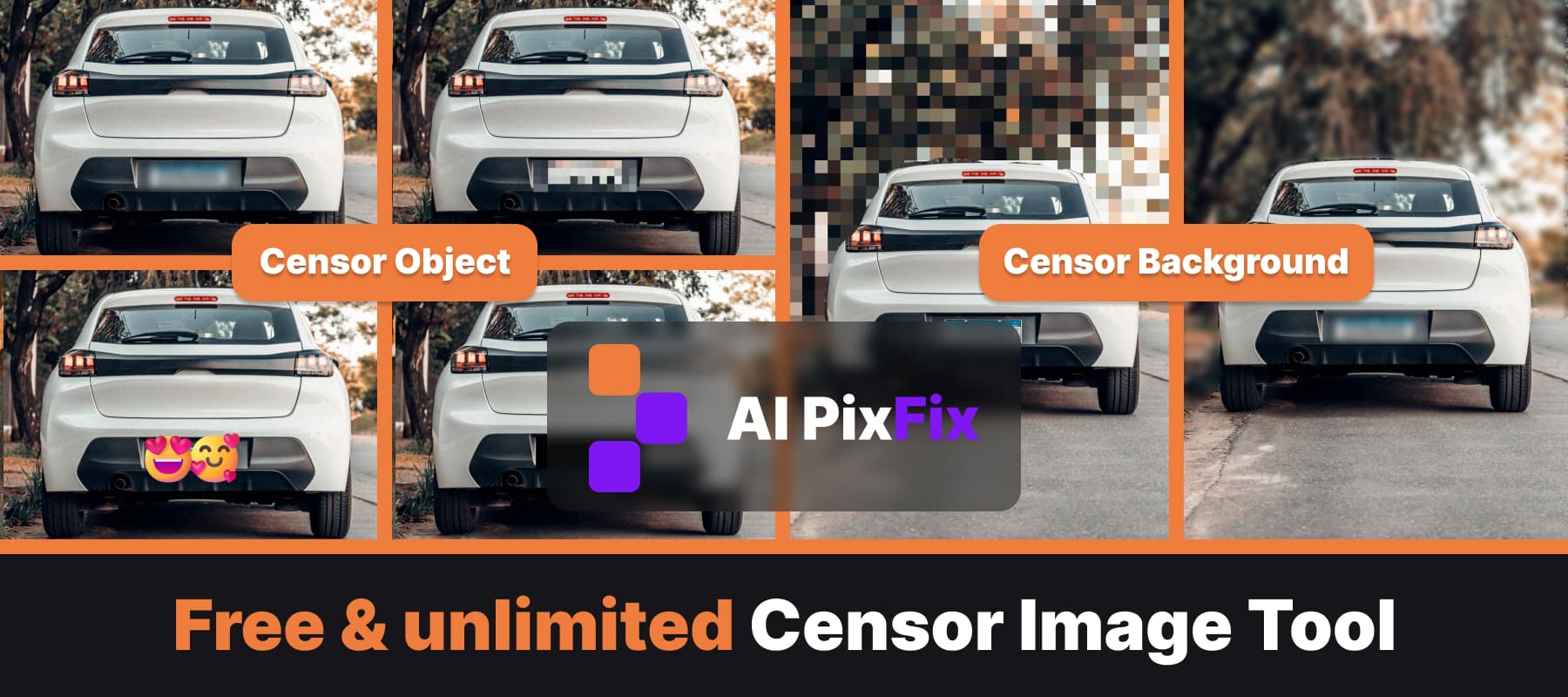
The image censor editor is built around the idea that one shape rarely covers a whole document. You can drop as many circles and ovals as you need — each one moves and resizes independently with corner handles — and each one can carry its own censor style. Black out an account number, pixelate a signature, and blur a face in the background photo, all in the same image. There is no account to create and no per-image limit.
When you censor a document, the style you pick matters. For names, addresses, ID numbers, card digits and signatures, Solid black is the safest choice — it wipes the pixels entirely, so once the censored image is downloaded the hidden text cannot be recovered from it. A light blur or a coarse pixel mosaic can sometimes be partially reversed on short, predictable text, so treat them as a stylistic censor rather than a hard redaction.
For photos rather than paperwork, the transparent blur usually reads best — the background colours bleed through so the censor looks intentional rather than like a clumsy black bar — and a slider lets you push it from a gentle softening up to a heavy frosted effect. Pixelate gives the chunky, retro mosaic look used on TV, and when censorship needs to feel friendlier you can switch the style to Emoji and drop a yellow face in place of the shape.
The same tool also works for blurring the background of a photo or just isolated pieces of it. Use the manual brush to paint over a whole busy backdrop behind the subject, or drop a circle or rectangle on individual details you would rather not share — shop names and brand signs, street signs and house numbers, license plates, a screen in the background or a reflection in a window. It is the quickest way to keep the focus on your subject and strip out anything that gives away a location before you post the picture.
How to use
- 1Upload an image — Drop a PNG, JPG, WebP, AVIF or HEIC photo or document scan to open the editor.
- 2Add a shape over what to hide — Click Circle or Oval to drop a shape in the centre of the image, then drag it over the name, face, address or number and resize it from the corner handles.
- 3Pick a censor style — Choose Solid black to redact text and numbers, or Transparent blur, Pixelate or Emoji from the side panel. Adjust the blur strength or pixel-square count to taste.
- 4Save — Click Save result, then download the image at the original resolution and format with no watermark.
Frequently Asked Questions
Is this image censor tool free?
Yes — every blur, pixelate and black-out is free. No account, no daily cap, and the saved image has no watermark.
Do my photos or documents get uploaded to a server?
No. The censoring runs entirely in your browser using JavaScript. Your photo or document scan never leaves your device — which matters when the image holds personal data.
How do I censor sensitive information on a document?
Open the document scan or screenshot, drop a circle or oval over each detail you want to hide — a name, address, account number, signature — and set the style to Solid black for a true redaction or Pixelate for a softer censor. Add as many shapes as the document needs.
Can I censor more than one area in an image?
Yes. Click the circle or oval button as many times as you want — each new shape can be moved, resized and given its own censor style, so one image can carry several redactions at once.
What is the difference between blur, pixelate and black out?
Transparent blur softly smears the area so it becomes unreadable while keeping surrounding colours. Pixelate replaces it with a grid of large squares — the classic mosaic censor. Solid black wipes the area completely and is the safest choice for redacting text, ID numbers and signatures on documents.
Is a blurred document safe to share?
For text and numbers, prefer Solid black over blur or pixelate — a light blur can sometimes be reversed. Solid black removes the pixels entirely, so once you download the censored image the hidden data cannot be recovered from it.