May 13, 2026 - Background Removal
How to Turn an Image into a Transparent Background PNG
A transparent background PNG is the file you want when the subject should float cleanly over a website, marketplace listing, slide deck, thumbnail, sticker, or design canvas. The important part is not just removing the background. The result also needs to keep a real alpha channel, because that is what lets empty pixels stay see-through instead of turning white, black, or gray.
What a transparent background PNG actually means
PNG can store transparency through an alpha channel. A pixel can be solid, fully transparent, or partially transparent around soft edges like hair, glass, smoke, shadows, and motion blur. JPG cannot do that. If you remove the background and save the result as JPG, the empty area has to be filled with some color. That is why a product cutout often comes back with a white rectangle around it when the wrong format is used.
The AI PixFix background remover accepts JPG, PNG, and WebP inputs, runs the cutout in your browser, then saves the final result as a transparent PNG. That gives you a subject cutout that can sit on any color, pattern, or layout without carrying its old background with it.
How to turn an image into a transparent PNG
Upload the image
Drop in a JPG, PNG, or WebP file. Product shots, profile photos, logos, pets, screenshots, and thumbnails all work best when the subject is visually separated from the background.
Let the AI remove the background
The background-removal model runs locally in the browser. On the first run it may take longer while the model loads; after that, cached runs are faster.
Check the edge quality
Look closely around hair, hands, transparent objects, product corners, and shadows. Those are the places where any automatic background remover is most likely to guess.
Touch up the cutout if needed
Open the manual editor. Use the hard eraser for crisp product edges, the soft eraser for feathered detail, and the restore brush when the AI removed part of the subject.
Download the transparent PNG
Save the final file as PNG. The transparent pixels remain transparent, so the cutout can be reused in design tools, ecommerce images, social posts, and presentations.
Why browser-based background removal is useful
Some background tools are designed around an upload flow. The official iLoveIMG background remover page presents upload options for a computer, Google Drive, Dropbox, and drag-and-drop, and describes support for JPG and PNG images. The official remove.bg pricing page says the free option gives a preview image up to 0.25 megapixels for personal use, while higher-resolution results are part of the premium plan. Those are valid product choices; they just solve the problem differently.
AI PixFix is built for the case where you want a quick transparent PNG background removerwith local browser processing, manual cleanup, and transparent PNG export in the same workflow. The model, canvas editor, and PNG export all run in the page after it loads.
Where AI PixFix is stronger for transparent PNG cutouts
| Need | AI PixFix advantage | Official competitor reference |
|---|---|---|
| Keep the image local | The image is processed in your browser; the tool does not upload your file to AI PixFix servers. | iLoveIMG presents a file-upload workflow from device, Google Drive, Dropbox, or drag-and-drop. |
| Use WebP input | AI PixFix accepts JPG, PNG, and WebP, then exports a transparent PNG. | iLoveIMG describes the remover as supporting JPG and PNG images. |
| Free transparent PNG export | AI PixFix downloads the transparent PNG without sign-up, watermark, or a paid high-resolution step. | remove.bg states that free use is limited to preview images up to 0.25 megapixels for personal use. |
PNG is the right final format because the PNG specification defines alpha-based transparency for image data. External references are marked nofollow.
Clean edges matter more than the first click
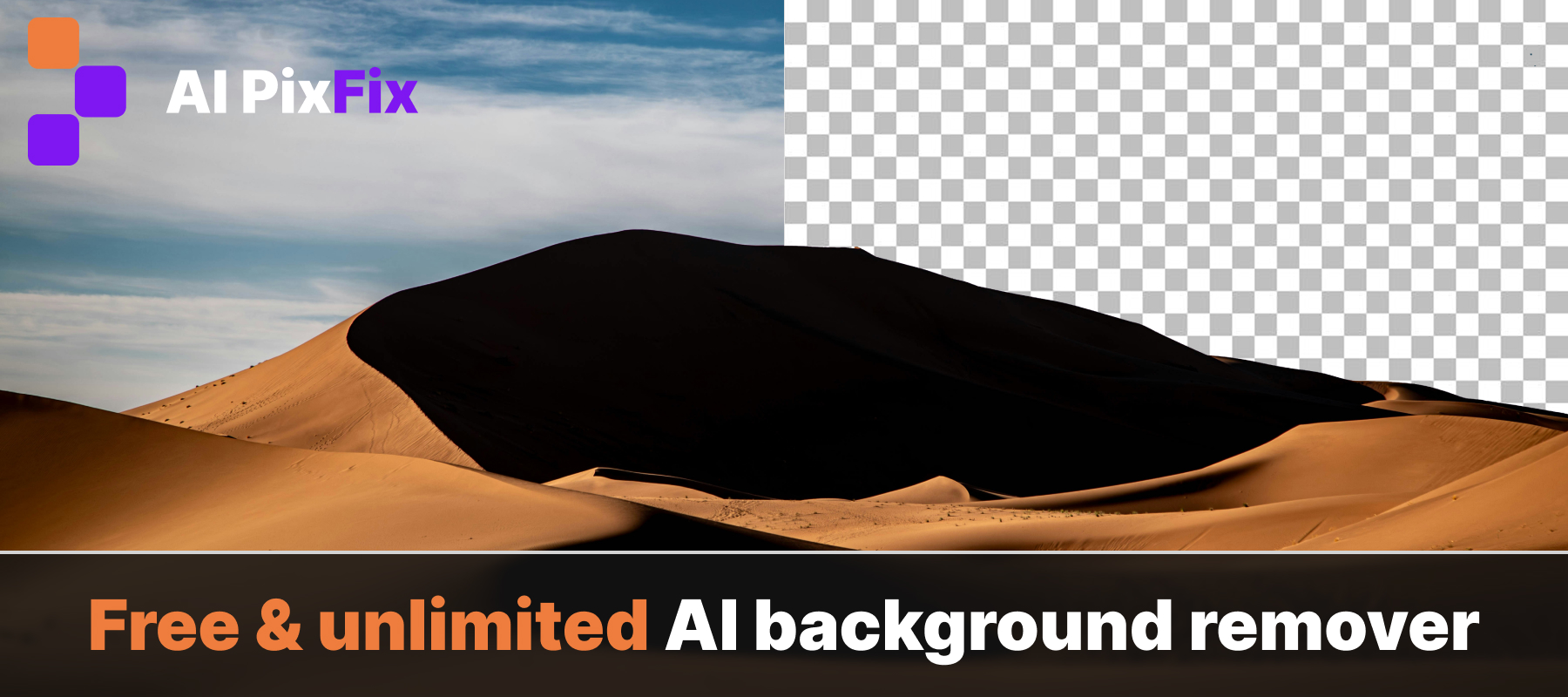
A transparent background PNG is only useful if the edge looks believable. A hard geometric object should have a clean edge. Hair, fur, fabric, and smoke should have soft transitions. If an automatic mask removes too much, a restore brush matters more than running the same photo through the model again.
In AI PixFix, the manual editor works directly on the PNG canvas. Hard eraser removes pixels with a crisp circular brush. Soft eraser uses a fading radial mask for feathered cleanup. Restore paints original pixels back where the subject was accidentally cut away. Undo and redo cover the last few steps, so cleanup can be careful without restarting the entire image.
Best uses for a transparent background PNG
- Product photos that need to sit on marketplace white, brand colors, or seasonal banners.
- Profile pictures where the person should be placed over a clean design background.
- Logo and icon cleanup when the old file has a white box around it.
- YouTube thumbnails, social posts, and presentation graphics that need layered subjects.
- Design handoff files for Canva, Figma, Photoshop, PowerPoint, or ecommerce templates.
Transparent PNG checklist before you download
Before exporting, zoom in around the edge and check four things: no old background pixels are stuck to the subject, no important subject pixels were removed, soft details still look natural, and the transparent area is really empty. If the file will be used on a dark background, preview it against a dark surface too; white halos are easy to miss on a white page.
Once it looks clean, save it from the free remove background tool as a PNG. That final PNG is the reusable version: drop it onto a new background, compress it for the web, place it into a layout, or keep it as a clean master cutout for later edits.
Frequently asked questions
How do I turn an image into a transparent PNG?
Upload a JPG, PNG, or WebP image to AI PixFix Background Remover. The tool removes the background in your browser, then downloads the result as a PNG with transparency. If the cutout needs cleanup, use the manual editor before saving.
Why does the output need to be PNG?
PNG supports an alpha channel, which means pixels can be fully or partially transparent. JPG does not support transparency, so a cutout saved as JPG would need a solid background color behind it.
Are my images uploaded to AI PixFix servers?
No. The background-removal model runs in your browser and the editor uses the local canvas. Your image is read on your device, processed there, and downloaded back as a transparent PNG.
Can I fix rough edges before downloading the transparent PNG?
Yes. After the automatic cutout you can open the manual editor, use a hard eraser for crisp edges, a soft eraser for feathered edges, or a restore brush to paint original pixels back. Brush size ranges from 4 to 120 pixels.
Which input formats work?
AI PixFix accepts JPG, PNG, and WebP images for background removal. The final download is a transparent PNG so the cutout keeps its alpha channel.