May 29, 2026 · Compress PDF
How to Shrink a PDF Below a Gmail Attachment Size Limit
You hit send and Gmail bounces it back: the attachment is too big. The PDF weighs 34 MB, Gmail caps attachments at 25 MB, the recipient's corporate inbox is probably stricter still. The fastest fix is not a desktop installer or a cloud account — it is a free PDF compressor that runs inside the browser tab you already have open. Drop the file, get a smaller PDF back, attach, send. This article explains why PDFs bloat in the first place, what each major email provider actually allows, and how to compress a PDF to fit.
What email providers actually allow
Email attachment caps vary by provider, and the limit that matters is not yours — it is whichever side is stricter. If you send a 24 MB PDF from Gmail to an Outlook inbox, your end accepts the attachment and the recipient's server rejects it. The message either bounces or silently strips the file.
- Gmail — 25 MB per message for sending. Anything larger is converted to a Google Drive link.
- Outlook.com and Microsoft 365 — 20 MB cap on standard plans; OneDrive links replace the attachment past that.
- Yahoo Mail — 25 MB for the message; bigger files route through a cloud link.
- Apple iCloud Mail — 20 MB direct, with Mail Drop covering attachments up to 5 GB via a temporary link.
- Corporate gateways — many enterprises set a hard 10 MB ceiling on inbound mail to limit spam and malware load. This is the threshold you most often need to actually beat.
There is also an overhead tax. Email attachments are Base64-encoded for transit, which inflates the raw file by roughly 33%. A 19 MB PDF sent as an attachment occupies closer to 25 MB on the wire. The practical safe target for cross-provider email is around 20–22 MB on the actual file — and around 7–8 MB if a corporate 10 MB gateway sits in front of the recipient.
Why PDFs bloat in the first place
A 50 MB PDF is almost never 50 MB of text. PDF is a container — the same file can hold paragraphs, vector drawings, embedded fonts, raster images, form fields, annotations and metadata. The weight comes from three repeat offenders.
Oversized embedded images. A phone photo taken at 4032×3024 px is roughly 12 megapixels and saves to several megabytes per page. Drop ten of those into a PDF — a scanned contract, a photo report, a slide deck exported with picture-heavy slides — and the file balloons past 40 MB without anyone noticing. The page only needs to look sharp at screen and print resolution; the source megapixels are wasted.
Duplicate or fully-embedded fonts. Authoring tools often embed every font used by a document, sometimes more than once, sometimes the entire glyph set when only a hundred characters are needed. Each embedded subset adds tens to hundreds of kilobytes. Across a long report with three or four fonts, this compounds.
Accumulated metadata. Every save, every OCR pass, every edit can append revision history, thumbnails, XMP metadata streams and form data the reader never sees. None of it is needed to display the page; all of it sits inside the file.
How PDF compression actually works
Effective PDF compression is not one trick — it is three, run together. First, the embedded images are decoded, downsampled to a screen-friendly DPI and re-encoded with stronger image compression. The text on the page is left alone; only the bitmap content is rewritten. Second, the embedded fonts are inspected and reduced to the glyph subsets that the document actually uses. Third, the structural metadata — duplicate streams, unused objects, revision history, thumbnail caches — is stripped out and the PDF object table is rewritten cleanly.
That is the contract a good free PDF compressor should honour: same readable text, same layout, same page count, smaller file. What it should not do is flatten every page into a low-quality JPEG, strip the searchable text layer or insert a watermark across the output. Those are shortcuts, not compression.
How much smaller will the PDF get?
Honest answer: it depends on what is inside. PDFs whose weight comes from high-resolution images — scanned documents, photo reports, slide decks with full-bleed pictures — typically shrink by 50–80% because the image rewriting does most of the work. A 40 MB scanned contract often lands between 8 and 18 MB, comfortably under the Gmail and Outlook attachment caps.
Text-heavy PDFs see more modest reductions. A 6 MB report that is mostly paragraphs, headings and tables might come out at 4 to 5 MB. Text streams are already efficiently encoded inside a PDF — there is less waste to remove. The good news is that text-heavy PDFs are usually already inside email limits; the ones that block the send are almost always the image-heavy ones.
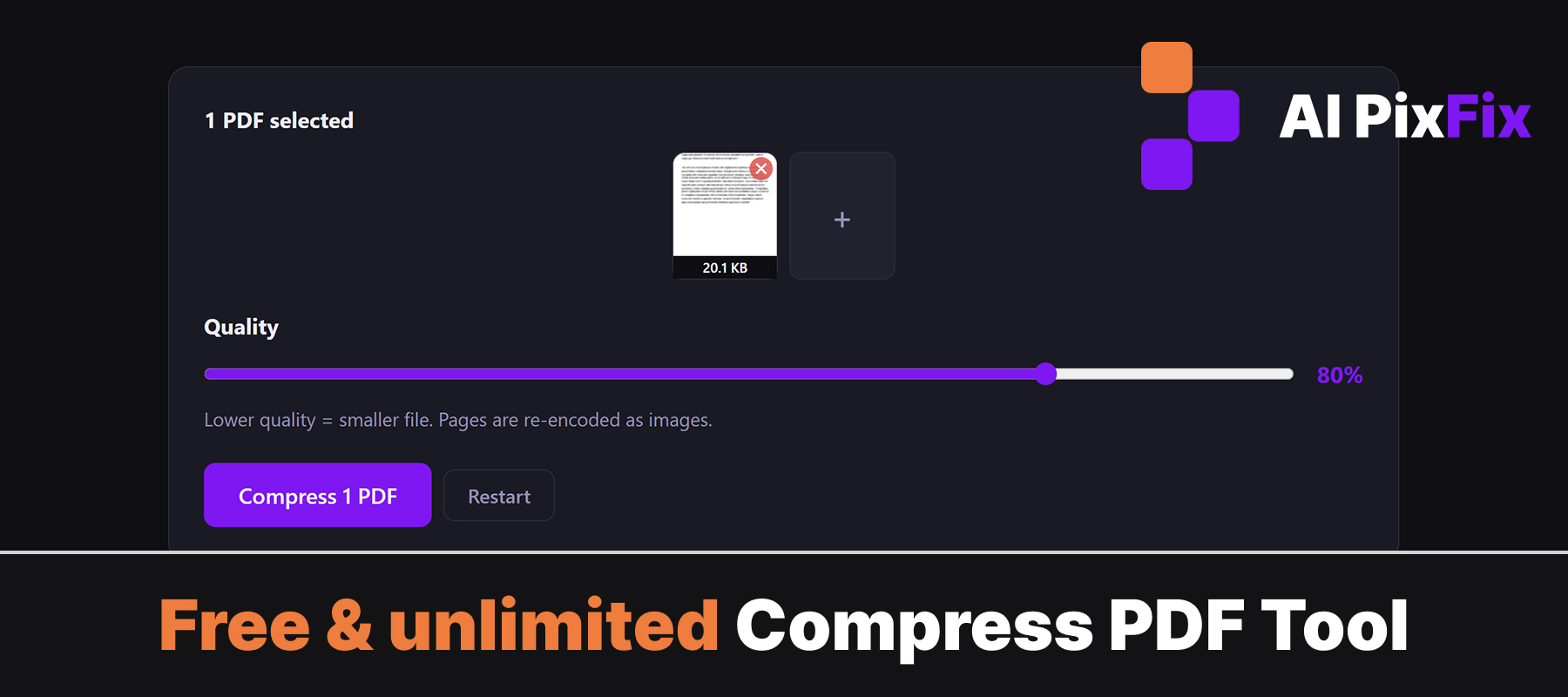
How to compress a PDF for email, step by step
Open the PDF compressor
Visit the compress PDF page in any modern browser — Chrome, Firefox, Safari, Edge. There is nothing to install and no account to create.
Drop in up to 5 PDFs
Drag the PDFs into the upload area or click to pick them. The tool accepts up to five files at once, useful when you have a batch heading to the same inbox.
Pick a compression level
Higher compression reduces size further and may slightly soften photo-heavy pages. For an email cap, start with the medium level — it is usually enough to clear 25 MB on a 30–40 MB PDF.
Compress
Press the Compress button. Each PDF is processed locally in your browser. The result shows the new size and the percentage saved per file.
Download and attach
If the file is under your target cap, download and attach it. If a single PDF still exceeds the limit, raise the compression level and run it again, or split the document by page range.
Why not just upload the PDF to compress it
Most online PDF compressors are cloud-based — they require an upload step, do the work on a remote server and return the smaller file to your browser. PDF24 states in its FAQ that "All files are automatically deleted from the processing server within one hour after processing," which confirms the file does travel to and sit on their machines for a window. Smallpdf works the same way: the PDF is uploaded, processed on their servers, and returned to your browser.
For a public marketing PDF that is fine. For the documents that most often need shrinking before email — signed contracts, payslips, bank statements, scanned passports, medical letters — a path that does not involve a third-party server is the safer default. The AI PixFix tool processes the PDF inside the browser tab using WebAssembly, so the bytes never leave the device and no retention window applies.
What to try when compression is not enough
Sometimes a single document is genuinely too big to ship as an attachment, no matter how aggressive the compression. A 200-page scanned report at print resolution can still come out at 30 MB after a hard squeeze. A few options at that point:
- Split the PDF by page range and send it in two or three messages — useful when the recipient's gateway is the bottleneck.
- Share via a cloud link — Google Drive, OneDrive, Dropbox and similar. Gmail and Outlook do this automatically once you exceed the attachment cap.
- Re-export from the source, if you have it — exporting a slide deck or report at “screen” or “web” quality instead of “print” can drop the file by an order of magnitude before any compressor runs.
- Confirm the limit with the recipient — corporate caps vary. A quick check beats three failed sends.
A quick recap before you hit send
PDFs bloat from images, fonts and metadata; email caps sit between 10 MB (corporate gateways) and 25 MB (Gmail, Yahoo); Base64 encoding adds about a third on the wire. A browser-based compress PDF step removes redundant metadata, downsamples oversized embedded images and trims duplicate font data — usually enough to clear the cap on an image-heavy document with one pass.
The whole process is free, has no account, no watermark on the output and no daily limit. The PDFs stay on your device. Compress, attach, send.
Frequently asked questions
What is the Gmail attachment size limit?
Gmail allows attachments up to 25 MB per message for sending. Anything larger gets converted to a Google Drive link instead of a real attachment. The receiving inbox may have a smaller limit, so 20–22 MB is a safer target.
Why is my PDF so big to begin with?
PDFs bloat from three sources: high-resolution embedded images saved at print DPI, duplicate or fully-embedded font subsets, and accumulated metadata from edits, scans and OCR passes. A 40 MB PDF is usually mostly images, not text.
Will compression damage the text or layout?
No. The PDF text, fonts and page layout stay intact. Compression targets oversized embedded images and redundant metadata — the parts that add weight without adding meaning to the reader.
Is my PDF uploaded to a server during compression?
Not in the AI PixFix compressor. The file is read and rewritten directly in your browser using JavaScript. The bytes never leave your device, which matters when the PDF is a contract, statement, scan or anything personal.
What if the compressed PDF is still too large for email?
If a single PDF is still over the limit after compression, the next step is usually to split the document by chapter or page range, or to share it as a link via Google Drive, OneDrive or a similar service rather than as a raw attachment.
Drop the PDF, shrink it in your browser, attach, send. Free, no sign-up, nothing uploaded.
Compress a PDF now