June 5, 2026 · Resize Image
How to Resize a Photo for a LinkedIn Banner (1584×396)
You upload a clean photo as your LinkedIn banner and the result looks soft, off-centre, or half-hidden behind your profile picture. The source was fine on your laptop — but LinkedIn carved a 4:1 strip out of it, scaled the survivor up and down for different screens, and the subject you cared about is now either cropped or buried under the headline overlay. The fix is to resize the picture to LinkedIn's exact banner dimensions before you hand it over, with the subject placed where the platform's overlays will not cover it. A free image resizer that runs in your browser handles the whole job in four clicks.
The exact LinkedIn banner size (and why it looks weird)
LinkedIn's personal-profile banner is 1584 × 396 pixels. That is a 4:1 ratio — far wider and flatter than any photo a phone takes natively. A 16:9 phone shot is 1.78:1, a square is 1:1, a portrait selfie is taller than it is wide. Every one of those is a different shape, so when LinkedIn forces them into the 4:1 banner slot, something has to give.
The platform's automatic crop takes a horizontal slice through the middle of the source image and discards everything above and below. That slice is rarely the part you wanted. The clean fix is to choose the slice yourself — pick the part of the photo that should survive, resize it to 1584 × 396 pixels with image scaling you control, and upload exactly what LinkedIn will display.
Mind the safe zone — the profile photo eats the left
The banner is not a clean rectangle once the rest of the profile loads on top of it. On desktop, the round profile picture sits on top of the banner near the bottom-left, and the name and headline overlay sit immediately to its right. On mobile, the overlay structure changes again — the profile picture moves and the cropped banner shows less of the right edge.
Designing for the centre and right side of the banner — away from the bottom-left — keeps the subject visible across both layouts. As a rule of thumb:
| Zone | What goes there |
|---|---|
| Bottom-left | Nothing critical — covered by profile picture & name overlay on desktop. |
| Centre | The visual anchor — your face, a product shot, a key word. |
| Right third | A safe place for a tagline, a logo, a colour accent. |
| Top edge | Trimmed on some mobile renderings — leave 30–40 px of breathing room. |
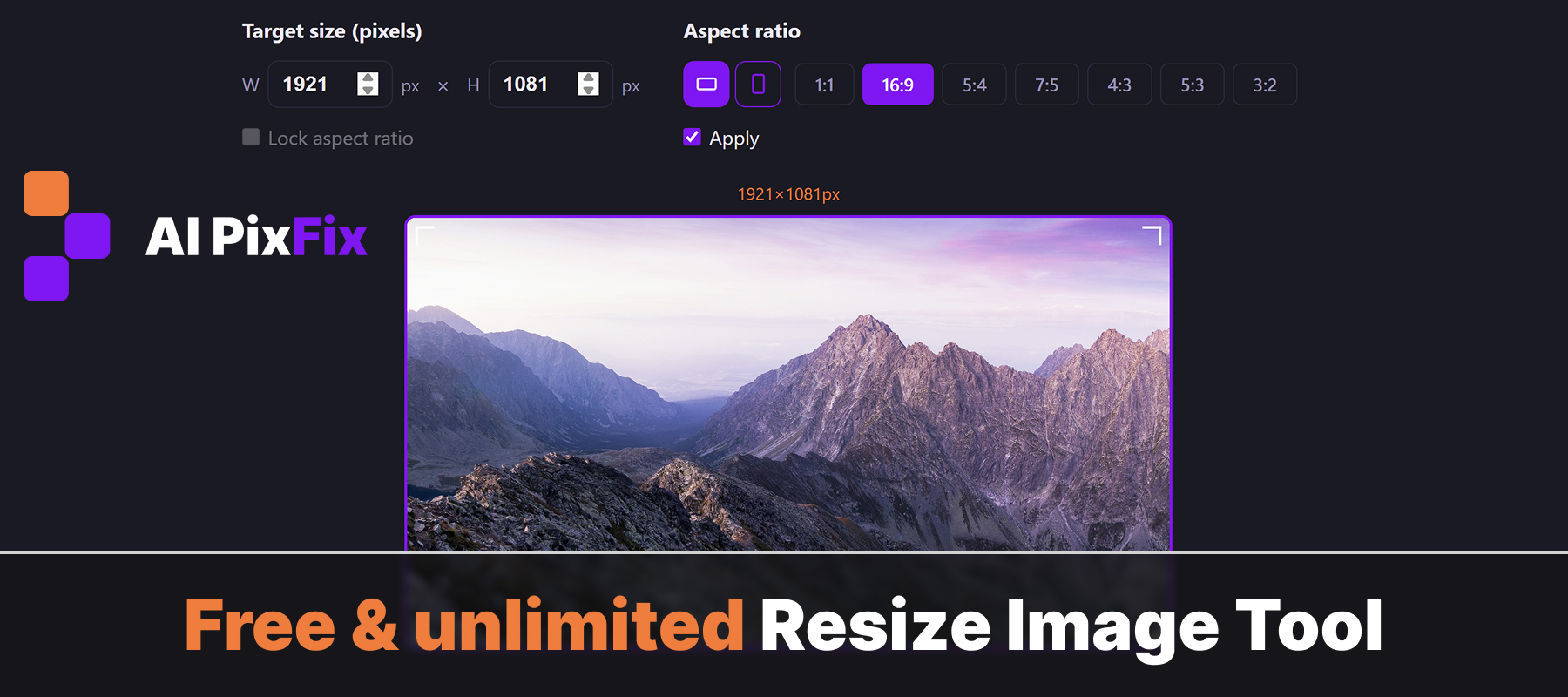
You can pre-visualize this inside the pixel-exact image resizer by dragging the crop frame so the important subject sits in the centre or right third of the final 1584 × 396 strip. The grey area outside the frame is what gets discarded on save — the inverse of LinkedIn's automatic crop, except you are the one drawing the line.
How to resize a photo for the LinkedIn banner in four steps
Drop the source photo into the resizer
JPG, PNG or WebP up to 50 MB per file. The tool reads natural width and height — you want the source to be wider than 1584 px so the resize is a downscale, not an upscale.
Type 1584 and 396 into the width and height fields
Width and height fields accept any value from 1 to 10 000 pixels. Type 1584 into width and 396 into height. The Lock aspect ratio checkbox should be off — the target ratio is 4:1, which almost certainly differs from your source, and the crop frame is exactly how that gap gets bridged.
Drag the crop frame to set the safe zone
A draggable 4:1 preview rectangle appears on top of the image. Drag it so the part you want — face, logo, key product — sits in the centre or right third, away from the bottom-left overlay area. The grey margin outside the frame is what LinkedIn never sees.
Save and download as PNG, JPG or WebP
Click Save. The tool renders the result onto a 1584 × 396 canvas with the browser's high-quality smoothing enabled. PNG keeps transparency if your source has any; JPG is the smaller file for full photographic banners; WebP gives modern compression with better quality at the same size.
Same recipe, different sizes — company page, X header, YouTube banner
The personal LinkedIn banner is just one of a family of wide-rectangle header slots that every major platform now has. The workflow inside the resizer is identical; only the pixel dimensions change. Underneath, the resize step is a Canvas drawImage call with high-quality smoothing — the same primitive every browser uses for native image scaling.
| Header type | Aspect | Target size |
|---|---|---|
| LinkedIn personal banner | 4:1 | 1584 × 396 px |
| LinkedIn company page cover | ~4:1 | 1128 × 191 px |
| Twitter / X header | 3:1 | 1500 × 500 px |
| YouTube channel banner | ~6.2:1 desktop slice | 2560 × 1440 px source |
| Facebook cover photo | ~2.7:1 | 851 × 315 px |
Same four clicks. Type the target dimensions, drag the crop frame to keep what matters, save the file in the format the platform wants. Every other social header size lives in the same resize image workflow.
No watermark, no account, no daily cap
A LinkedIn banner is a five-minute job. Free online editors keep attaching strings to it anyway. Hosted resizers commonly run server-side, push you through a sign-in wall, or apply daily caps once they recognise repeat traffic. Some stamp a domain into the corner of the output, which is fine for a quick share but unacceptable on a personal profile a hiring manager will look at.
Unlike platforms such as iLoveIMG or ImageResizer.com, you do not need to register or pay for a tier to get unlimited access to the AI PixFix resizer — no account, no daily cap, no watermark. The photo never leaves your device, which matters more than people think for a banner that often combines a personal photo with a real name and current job title.
Frequently asked questions
What is the exact size for a LinkedIn personal banner?
1584 pixels wide by 396 pixels tall — a 4:1 aspect ratio. LinkedIn renders the banner at smaller sizes on different devices, but uploading at the documented native size gives the platform the cleanest source to scale down from.
Why does my LinkedIn banner crop my face or logo?
Two reasons. First, the source was a different aspect ratio (a 16:9 phone shot, a square crop) and LinkedIn carved a 4:1 slice out of it without consulting you. Second, the profile photo and headline overlay the bottom-left of the banner on desktop, so anything important placed there gets covered. Resize to 1584×396 yourself and keep the subject in the right safe zone before upload.
Can I upload a PNG or does it have to be JPG?
Both work. PNG is better for banners with logos, hard edges or a transparent area you want to overlay on a flat color. JPG is the smaller file for photographic banners. WebP is supported too and gives roughly the same quality as JPG at a smaller size — pick the format that matches what you uploaded last time so your style stays consistent.
Will the resize tool upload my photo to a server?
No. The whole resize pipeline runs in your browser using the Canvas API. The image is read from your disk, scaled in memory, and offered as a download. No upload, no account, no daily cap.
What if my source photo is smaller than 1584×396?
Pick a different source if possible. Upscaling from below the target size invents pixels that were not in the original, and edges go soft. If the source is unavoidable, the resize tool still produces the exact 1584×396 file — just expect some softness, and consider a typographic banner instead of a low-resolution photo.
Drop a source photo, type 1584 and 396 into width and height, drag the crop frame so your subject avoids the bottom-left overlay, save a clean banner. Four clicks, free, nothing uploaded.
Resize a banner now