May 29, 2026 · Read PDF
How to Read a PDF on iPad or Tablet Without an App
A PDF arrives on your iPad — an e-ticket, a school permission slip, a vet receipt, a rental contract. The first instinct is to head to the App Store and grab whatever PDF viewer has the most stars. Then comes the rest of it: an account prompt, a push-notification request, an upgrade banner, and another icon on the home screen you will not touch again for a year. There is a quieter route. Open a tab, point it at a free PDF reader that runs entirely in Safari or Chrome, drop the file in, and read it with the same pinch-to-zoom gesture you already use on every other webpage.
Why tablets make a simple PDF feel complicated
On a laptop, opening a PDF is usually a non-event — the browser handles it inline and you scroll. On an iPad, Android tablet, or Chromebook the experience is less predictable. Safari may decide that the response from a website looks more like a download than a webpage and quietly hand the file off to the Files app instead of displaying it. iPadOS then drops you into a stack of folders — On My iPad, iCloud Drive, Recents — and you have to remember where it landed before you can even see page one.
Android tablets and ChromeOS handle PDFs a little differently from each other, and even from version to version. The end result is the same: instead of just reading the document, you are debugging where it went. So people open the App Store, install a third PDF app this year, and tap through the same set of permission screens. None of that has anything to do with the document itself.
Why another PDF app is the wrong fix
A dedicated reader from the App Store or Play Store solves the immediate problem and brings two new ones. The first is the trade for access: most free PDF apps want an account, ask for tracking permission, and surface a paid tier within a few taps. The second is what they do with your file once it is inside. Some viewers stay on-device; others sync to a cloud you did not pick, push the document into a “cloud library,” or render it server-side for features like search or signing.
For a public PDF — a manual, a press release, a museum map — none of that matters. For the things people actually open on tablets — kids' homework with full names on it, a hospital letter, a payslip, a screenshot of a bank statement — it matters quite a lot. Every install is one more vendor in the loop, one more privacy policy to scan, and one more place a copy of that document might quietly sit.
A browser already has everything needed to render a PDF. Using the browser you already trust — Safari on iPad, Chrome on Android, anything on ChromeOS — to view the file removes the install step and the storage question at the same time. That is the pitch behind a free PDF reader that lives at a URL instead of in an app icon.
How the in-browser reader works on a tablet
The engine doing the work is pdf.js, an open-source PDF parser maintained by Mozilla and written entirely in JavaScript. It is the same library Firefox uses to display PDFs inline on desktop. When you point the reader at a file on your iPad or Android tablet, the bytes are read by the browser, parsed by pdf.js into page objects, and each page is painted onto an HTML canvas at its native size. Nothing about that pipeline involves a server. Nothing about it requires an app.
On a tablet that matters in a second way. Because the rendering is just an HTML canvas inside a webpage, every touch gesture the browser already knows about works on it. Pinch shrinks and grows the document, two-finger drag pans, double-tap zooms. You do not learn a new app's navigation — you use the gestures iPadOS and Android have been training you on since the first day you picked the tablet up.
How to read a PDF on iPad or Android tablet, step by step
Open Safari, Chrome, or your usual browser
On iPad open Safari; on an Android tablet open Chrome, Samsung Internet, or Firefox; on a Chromebook use Chrome. There is nothing to install, no extension to enable, no account to make.
Go to the PDF reader page
Navigate to the read PDF online page directly. The page is small and loads quickly even on cellular — no splash screen, no onboarding tour.
Pick the PDF from Files, iCloud Drive, or Downloads
Tap the upload area. iPadOS shows the Files picker so you can pull the document from On My iPad, iCloud Drive, Google Drive, or a recent attachment. Android shows the Documents picker with the same options.
Pinch to zoom, scroll to read
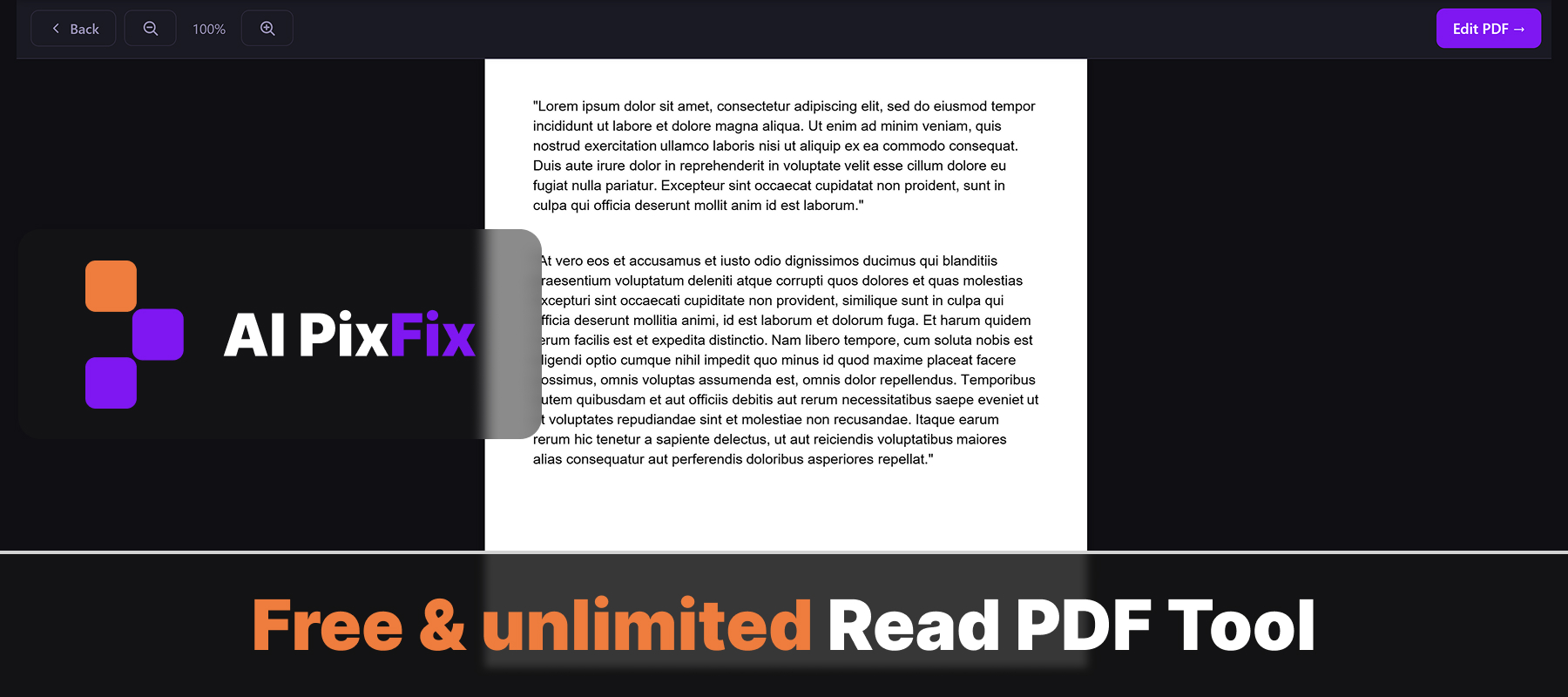
All pages render one after another at the document's native size. Pinch with two fingers to zoom anywhere from 50% to 300%, or tap the + and − buttons in the top bar. Scroll vertically through the rest of the file.
Close the tab when you are done
There is no app to background, no library to clean up, no cache to clear. Close the tab and the document is gone from the page; the original file stays exactly where you stored it.
When Safari wants to download instead of open the PDF
One of the small annoyances of tablet life is that the same PDF link behaves differently depending on how the server sent it. If the response carries a header that flags the file as an attachment, Safari respects that and saves it to the Files app instead of rendering it in a tab. iPadOS shows a brief banner, the download appears in the Downloads folder, and tapping it opens the system preview — which is fine for a casual look but routes you straight into the iPadOS share sheet for anything else.
The workaround that avoids installing yet another viewer is to flip the order. Open the in-browser reader first, then pick the downloaded PDF from Files. Same file, same browser, but now it renders inside the page with proper zoom controls. That is the loop the AI PixFix PDF reader is built for: a small page that you can keep as a bookmark on the iPad home screen and use any time a tablet decides to be unhelpful.
The private-document case for reading on-device
Most online PDF tools work by uploading the file. Smallpdf, for example, describes how documents are sent to its servers and protected in transit with TLS encryption — a sensible practice for any service that does its work in the cloud. It is also a clear description of where the file goes: it leaves the device. PDF24 takes the same path and is upfront about it in its FAQ: “All files are automatically deleted from the processing server within one hour after processing” — the file does reach their servers, it just does not sit there forever. For a marketing brochure that is a non-issue. For the kinds of PDFs that actually live on a family iPad — school admissions letters, a child's vaccination record, a tenancy agreement, a tax return — it is a detail worth noticing.
When the rendering happens locally, that whole question is removed. The tablet's browser opens the file you already have, draws the pages, and forgets about them when you close the tab. There is no upload to inspect, no retention window to count, and no “account required after three documents” gate waiting one step ahead. It is the version of read PDF online that behaves like a viewer rather than a funnel.
When the reader is not enough
The viewer is deliberately a viewer. Password-protected PDFs cannot be opened directly — pdf.js can detect the encryption, but the unlock step is handled by a separate tool to keep the reader interface free of prompts. Unlock the document first, then open the result. Likewise, annotations, signatures, page reordering, and watermarks are not in the reader itself; the “Edit PDF” button at the top opens the wider toolset when you actually need it.
That is the whole point of separating the two. Reading should feel like reading: open, scroll, pinch, close. Editing is a different intent and gets a different surface. If you opened the PDF expecting a viewer and got a busy editor instead, you already know how distracting the alternative is. For the broader story on the desktop side of this problem, the older walk-through on opening PDFs in the browser without Adobe Reader covers the same idea from a laptop-first angle.
Frequently asked questions
Does this work on an iPad in Safari?
Yes. The reader uses standard web APIs that Safari on iPadOS supports — no plug-in, no App Store download. Open the page in Safari, tap the upload area to pick a PDF from Files or iCloud Drive, and the document renders right inside the tab.
What about Android tablets and Chromebooks?
It works the same way in Chrome on Android tablets, Edge, Firefox, Samsung Internet, and on ChromeOS. Anything based on a modern browser engine can render the PDF locally — no Play Store install, no extension.
Why does Safari sometimes download the PDF instead of opening it?
When a server sends a PDF with a download header, Safari saves the file to your Files app instead of displaying it. To get around that, open the PDF reader first, then pick the saved file from Files — the page is rendered inside the tab instead of being saved as another copy.
Can I pinch to zoom on the document?
Yes. The reader also has + and − buttons in the top bar that scale the document from 50% up to 300%, and the pinch gesture you already use on iPad and Android works the same way it does on any other webpage.
Is anything from the PDF sent to a server?
No. The file is parsed and drawn by JavaScript running in your tablet's browser. The bytes never leave the device, so there is nothing for a third party to store, share, or retain — which matters when the PDF is a school letter, a medical report, or a bank statement.
Skip the App Store detour. Open the reader on your iPad or tablet, drop the file in, pinch to zoom, close the tab — no install, no upload, no account.
Read a PDF on your tablet