June 12, 2026 · Extract PDF Pages
How to Extract Specific Pages from a PDF as a New File
A 60-page contract where only pages 12, 13 and the signature sheet need to go to the lawyer. A class textbook where you want a clean PDF of one chapter to print. A research paper where the appendix is the only part you need to email to a colleague. You do not want a copy of the whole document with annotations or a freshly typed page range like “12, 13, 60” — you want the picked pages saved as a new PDF that opens straight to the content. A visual PDF page extractor clicks instead of typing, and the new file is ready in seconds.
Why typing “1,3,5-8” is the worst part of every PDF tool
Most online PDF extractors ask you to type page ranges into a text input — comma-separated, with hyphens for spans. iLovePDF works this way; so do many desktop PDF editors. The format is precise but it forces you to look up page numbers twice: once in the document, once after you have typed them in to verify you did not transpose a digit. One missed page in a 200-page report and the output is wrong in a way that is hard to notice until the recipient flags it.
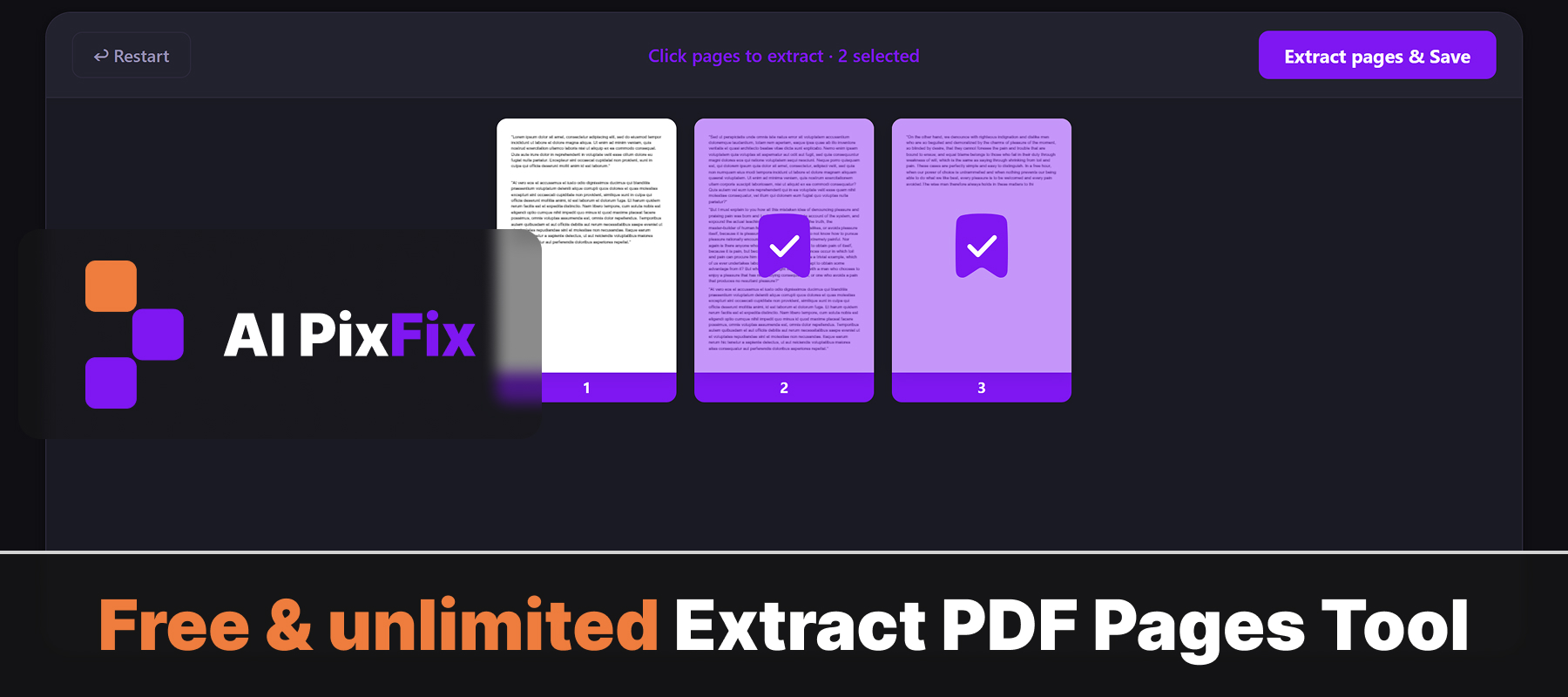
A visual selector replaces all of that with thumbnails. Every page renders as a card, you click the ones you want, the selection is highlighted in real time and the count updates on the toolbar. The transcription error disappears because there is no transcription. You are pointing at pages, not retyping numbers.
Merged into one PDF, or each page as its own file
Two output modes cover the common cases:
- Merged PDF. The picked pages are combined into a single output file in the order you selected them. Best for a packet — a signature sheet, an executive summary, a chapter extract — that needs to read as one continuous document.
- Separate one-page PDFs. Each selected page is saved as its own one-page PDF and the whole set is packaged into a ZIP. Best when you want to upload pages individually to a portal, archive each one under its own filename, or distribute them to different recipients.
The visual flow stays identical in both modes — the same extract pages from PDF workspace, the same click-to-select, only the export differs. That makes the choice cheap: pick the one that matches the recipient's expectation and the file is ready in a click.
How to extract pages from a PDF step by step
Open the extractor and drop the PDF
Drag the source file into the upload area. One PDF at a time. No page-count limit — a one-page memo or a 500-page report behave the same way.
Browse the page thumbnails
Every page is rendered as a card with its page number underneath. Scroll through to confirm which pages you want before selecting anything.
Click the pages you want to keep
Each click toggles a page's selection. The order of clicks becomes the order in the output PDF, so the third page you pick lands third in the merged file.
Choose merged or separate output
Decide whether the picked pages should combine into a single PDF or each save as its own one-page file. The toolbar shows both options before the export.
Download the result
Save the new PDF (or the ZIP of one-page files) to disk. The source document is untouched; the extracted set is a fresh file with only the pages you selected.
The privacy case for keeping extraction local
The PDFs people extract pages from are rarely public documents. They are contracts, bank statements, medical records, tax returns, signed NDAs. Uploading the whole file to a hosted extractor to pull out three pages is exactly the wrong tradeoff: the server sees the entire document, including the pages you specifically chose not to share. A browser-based extractor never sees any of it — the source PDF is read into memory through the File API, the selected pages are re-serialized into a new file locally, and the result is handed back as a download.
That is the substantive difference between a hosted service and an in-page tool. For any document with sensitive content, the AI PixFix extract pages from PDF tool keeps the file on your device end-to-end. No server log, no temporary copy, no daily limit, no watermark.
When the visual extractor is the right tool
Extraction is the right tool when you want a clean, smaller copy of the document that contains only the pages you picked. The page objects are moved over wholesale — fonts, text layer, vectors, embedded images, hyperlinks — so the new file reads and prints identically to the same pages inside the original. The PDF specification makes this possible by treating every page as a self-contained object inside a page tree, which is what lets the free PDF page extractor re-build a new tree without re-rasterising anything.
Used inside its actual lane — “keep these specific pages, drop the rest” — extraction is one of the cleanest PDF operations on the modern web. A visual click flow, no upload, no caps, no watermark.
Frequently asked questions
How is extracting different from splitting a PDF?
Splitting cuts a document into chunks at fixed boundaries — every 10 pages, or one file per page. Extraction is selective: you pick the exact pages you want, in the order you want them, and the rest of the document is discarded from the output. Splitting is mechanical; extraction is editorial.
Can I keep the pages in a different order than the original?
Yes. The output PDF combines selected pages in the order you click them. Click page 5, then 2, then 9, and the new file shows them in that sequence — useful for assembling a custom packet from a long source document.
Do I have to merge the selected pages, or can I save them as separate files?
Both options are supported. Merged mode produces a single PDF with the picked pages in the chosen order. Separate mode saves each selected page as its own one-page PDF, packaged into a ZIP for download.
Will text in the extracted pages still be selectable and searchable?
Yes. The page object is moved into the new PDF as-is, with its text layer, fonts and metadata intact. Selection, copy-paste and full-text search work exactly as they did in the source.
Does my PDF get sent to a server during extraction?
No. The entire selection and save flow runs in your browser. Pages are read from disk, the chosen subset is re-serialized into a new PDF locally, and the result is offered as a download. Nothing is uploaded.
Drop the source PDF, click the pages you want, pick merged or separate output, download. The new file contains only what you selected — nothing else, no upload, no watermark.
Extract PDF pages now