June 5, 2026 · Crop Image
How to Crop a Photo for a Twitter / X Header (3:1)
You upload a photo as your X header and it comes back hacked apart — the subject sliced horizontally, the right edge clipped, your face half-hidden behind the round avatar. The source was fine on your laptop; the platform just forced it into a 3:1 strip and made the crop choice for you. The fix is to crop the picture to the right shape yourself, before upload, with the visual anchor placed where the avatar overlay cannot eat it. A free image cropper with a fixed 3:1 ratio preset does the whole job in your browser — no upload, no account, no watermark on the result.
The X header is a 3:1 strip — and it punishes the wrong shape
X (formerly Twitter) renders profile headers at 1500 × 500 pixels — a 3:1 aspect ratio. That is much wider and flatter than the shape of any photo your phone takes natively. A 16:9 phone shot is 1.78:1, a square is 1:1, a portrait selfie is taller than it is wide. Hand any of those to the platform and it carves a horizontal slice through the middle, throwing away everything above and below.
That slice is rarely the part you wanted to keep. The clean fix is to choose the slice yourself: pick the part of the photo that should survive, frame it in a 3:1 rectangle, and upload exactly what X will display. Aspect ratio is the lever — pixel dimensions just follow it.
Where the avatar sits — and the safe zone you actually have
The header is not a clean rectangle once the rest of the profile loads on top of it. The round profile picture sits on the header near the bottom-left, and the name and handle overlay sit above the timeline boundary at the bottom of the strip. Anything important placed in those areas disappears.
- Bottom-left ~ 1/5 of the width. Covered by the round profile picture on most viewports — leave it empty or use it for a soft background.
- Bottom ~ 60 px. Sits below the timeline fold on some renders — anything critical here gets trimmed.
- Centre and right two-thirds. The actual safe zone — face, logo, tagline, key colour belong here.
- Top edge. Trimmed on some mobile views — keep 30 px of breathing room above the subject.
You can pre-visualize this while you drag the crop frame around your source image — the visual anchor goes in the centre or right two-thirds of the locked 3:1 rectangle, everything else is decoration.
How to crop a photo to a Twitter / X header, step by step
Upload the source photo
Drag a JPG, PNG or WebP into the tool, or click to browse. The image loads straight into the editor in your browser.
Choose Fixed Ratio mode
Pick Fixed Ratio. The crop frame locks to a proportion so it cannot drift off-shape while you compose the photo. Set the orientation to horizontal.
Pick the 3:1 preset
Tap the 3:1 ratio. The frame snaps to a wide rectangle three units wide and one unit tall — exactly what an X header needs.
Pan and resize the frame
Drag the corner handles to grow or shrink the locked 3:1 frame. Drag the photo underneath it to slide your subject into the centre or right two-thirds of the rectangle, well clear of the bottom-left where the avatar lands.
Use the rule-of-thirds grid as a guide
A rule-of-thirds grid is drawn over the frame. Line the subject up on one of the vertical thirds, or on a point where two lines cross, for a balanced header.
Save the PNG
Click Save. The crop renders to a clean PNG at the dimensions shown in the live readout — usually 1500 × 500 or larger, scaled down by X to its render size with the best-case smoothing. Upload it as your header.
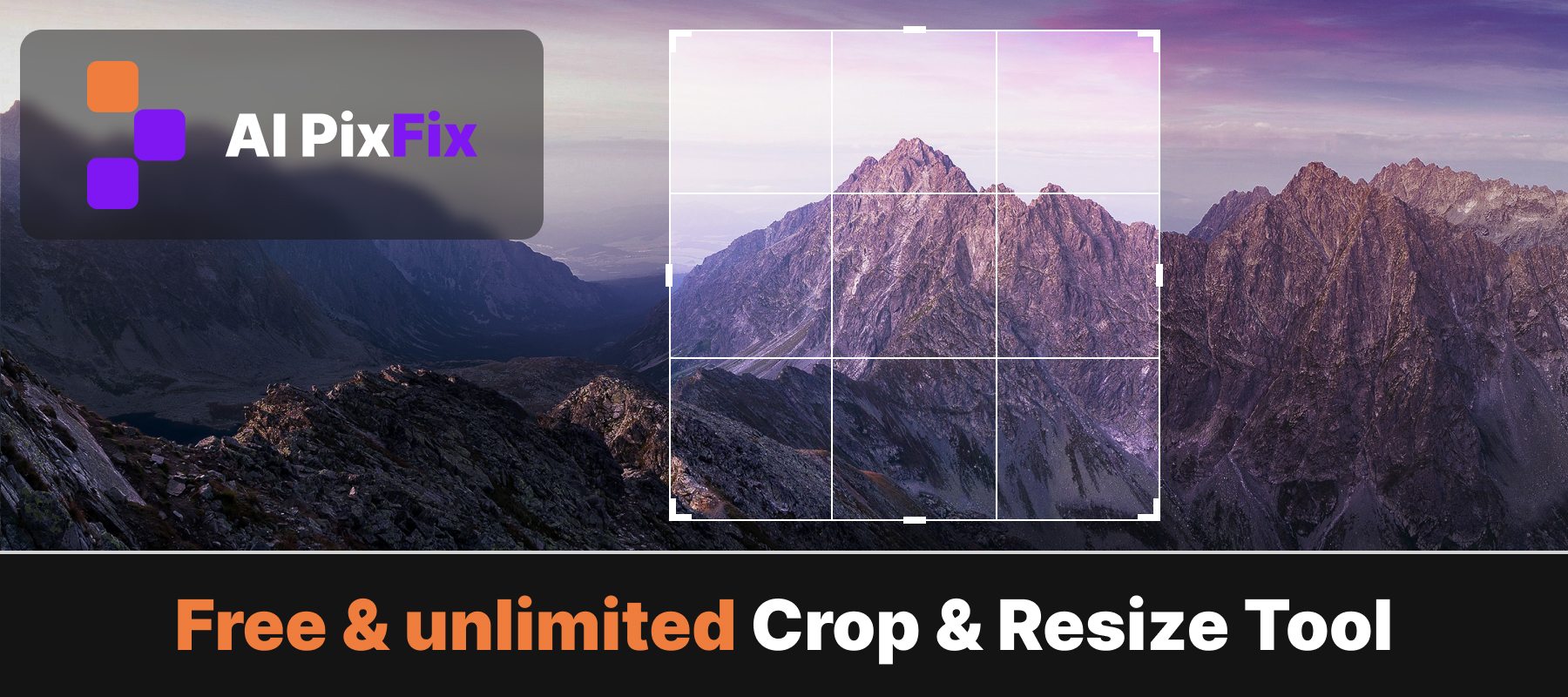
Composing with the rule-of-thirds grid
Locking the ratio fixes the shape, but composition still matters. The crop frame is overlaid with a rule-of-thirds grid — two horizontal and two vertical lines that split the frame into nine cells. Putting the subject on one of those lines, or at an intersection, is the oldest reliable trick for a balanced photo.
For an X header specifically, the right vertical third is the strongest anchor — well clear of the avatar on the left, and naturally drawing the eye toward the handle and the “Follow” button. The online image cropper also shows the live output dimensions as you drag, so you always know whether you are above or below the 1500 × 500 documented size before you commit.
Other headers the same workflow covers
The X header is one slot in a family of wide-rectangle profile banners. The crop workflow is the same for all of them — only the ratio preset changes:
- X / Twitter header — 3:1. 1500 × 500 px target.
- Bluesky banner — 3:1. Same crop file as X.
- LinkedIn personal banner — 4:1. 1584 × 396 px target — switch the cropper to a wider ratio.
- YouTube channel banner — ~6.2:1 desktop slice. 2560 × 1440 px source, with most of the visible content in the centre safe zone.
- Facebook cover — ~2.7:1. 851 × 315 px target.
When you crop image files for social media, the ratio is the thing that matters far more than the pixel count — every platform downsamples from the source you upload, and a clean ratio means no surprise crop.
A crop tool shouldn't cost you a watermark or an account
Cropping a photo is one of the smallest edits there is, yet free online editors keep attaching strings to it. Fotor's pricing page lists watermarked JPG, PNG and PDF exports on its free Basic plan — so a free crop can come back stamped with the service's branding. iLoveIMG's pricing page shows its free Crop tool capped at a 90 MB file size and one task at a time, with larger files and batches reserved for the paid tier.
The AI PixFix cropper takes the opposite approach. It is free with no account and no watermark on the output, and because the photo is processed locally in your browser, there is no upload and no file-size gate — the image never leaves your device.
Frequently asked questions
What is the exact size for a Twitter / X header?
1500 pixels wide by 500 pixels tall — a 3:1 aspect ratio. The platform renders the header smaller on different devices, but uploading at the documented native size gives it the cleanest source to scale down from. Anything you crop with a 3:1 frame will fit that slot, regardless of the source dimensions.
Why does my Twitter header crop my face or logo?
The platform forces the upload into a 3:1 strip. If you hand it a 16:9 phone shot, a square or a portrait, it crops the middle of the image to fit — and the centre of your source is rarely the part that mattered. Cropping to 3:1 yourself, with the subject placed where the avatar overlay will not cover it, is how you keep control of what stays in the frame.
Where exactly does the profile picture sit over the header?
On desktop, the round avatar sits on top of the header near the bottom-left, with the @ handle and name overlay above the timeline. On mobile the overlay layout shifts slightly. The safest place for the visual anchor — your face, a product, a key word — is the centre or right two-thirds of the 3:1 strip, away from the bottom-left.
Does the cropper upload my photo to a server?
No. The whole crop pipeline runs in your browser. The image is read off your disk, drawn onto a canvas, cropped and exported locally — nothing is sent to AI PixFix, nothing is logged, and the file is gone the moment you close the tab.
Can I use the same crop file for Twitter, X and Bluesky banners?
Bluesky uses a 3:1 banner too, so a 1500×500 export covers both X and Bluesky without re-cropping. LinkedIn personal banners are 4:1 and Facebook covers are roughly 2.7:1, so those need their own crop pass with the matching aspect-ratio preset in the cropper.
Lock 3:1, frame the subject in the right two-thirds, save a clean PNG — free, in your browser, no sign-up, nothing uploaded.
Crop an X header now