June 5, 2026 · Merge PDF
How to Combine Bank Statements Into One PDF
A mortgage broker wants the last twelve months of statements as a single document. A visa application form has one upload slot labelled “Bank statements (PDF)” and you have twelve files. Your accountant asked for the tax-year statements in one place so they can stop searching their inbox. The job is the same every time: take a stack of monthly PDF statements, glue them together in chronological order, and hand over one clean file. You can merge PDF files in your browser for free — no upload, no account, no watermark on the result.
Why reviewers ask for one combined statement file
Underwriters, immigration officers and accountants do not enjoy juggling twelve attachments. A single combined PDF is faster to scroll, faster to search, and far harder to lose half of. It also has a visible spine: page 1 is January, page N is December, the order is checkable at a glance. A pile of separately attached files gives reviewers no such guarantee, and it is the kind of small mess that earns a “please resubmit” email.
The other reason is the upload form itself. Most loan, visa and tax portals have a single file slot for “statements” with a polite cap — often 25 MB, the same as a Gmail attachment. Twelve statements as one file usually fits under that cap; twelve statements crammed into a ZIP often do not, and the portal frequently refuses ZIP archives entirely. Merging is the path of least resistance.
Page-level merging beats stacking whole files
Most bank statement PDFs are not just “the transactions.” A typical export has a cover sheet with the bank logo, a one-page transaction summary, the line items themselves, then a legal disclaimer and sometimes a marketing insert about credit cards or savings products. Twelve months of those wrappers is dozens of pages that no underwriter wants to read.
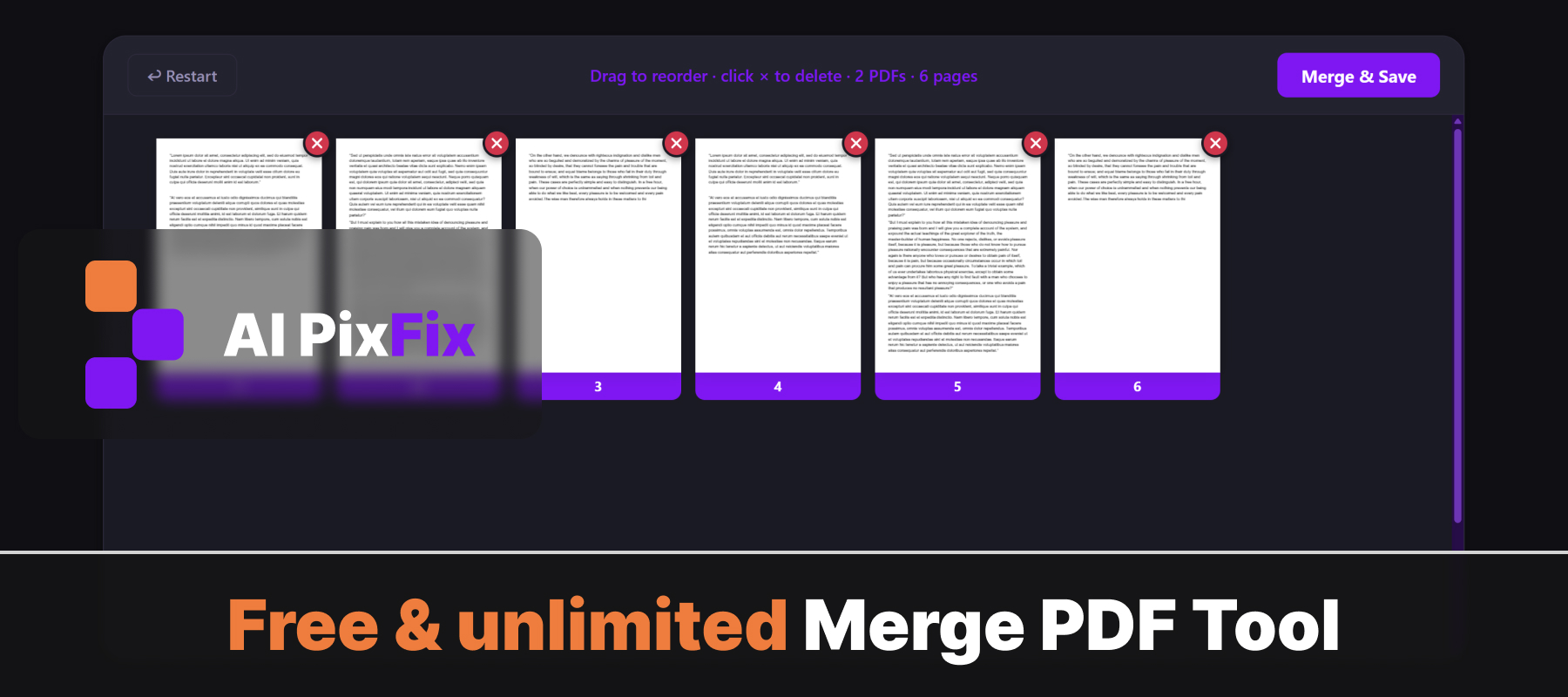
A naive merger stacks whole files: file A, then file B, then file C. The wrappers come along for the ride and the final document is twice as long as it needs to be. A page-level merger reads every page of every file into one shared workspace as a thumbnail — and you can drop the wrappers before saving. When you combine PDF files online with this tool, that is exactly the model: every cover sheet, every disclaimer and every blank page is one click away from being out of the final document.
By default the pages line up in the order you added the files — every page of the January statement, then every page of February, and so on. Add the files oldest to newest and the chronological order is already correct; you only touch the few pages that are genuinely out of place.
How to combine bank statements into one PDF, step by step
Download each month as a PDF first
Open online banking, go to statements, and download every month you need as a PDF. If your bank only offers CSV or HTML, use the browser's Print → Save as PDF to convert the page itself.
Open the merger and drop the statements
Drag every PDF into the workspace, or click to browse. Add them oldest to newest so the default order already matches the chronology a reviewer expects.
Let the pages load as thumbnails
Each file is read locally in the browser. Every page — covers, summaries, line items, disclaimers — appears as a thumbnail you can see, drag and delete.
Drop the wrappers you don't need
Click the red × on each cover page, marketing insert and legal disclaimer. Twelve statements often shed twenty or thirty pages this way without losing a single transaction line.
Reorder anything out of place
If a statement arrived out of sequence, drag its pages into the right slot. A guide bar shows the landing position so the final order is exactly the one you intend.
Merge and save
Click Merge & Save, then Download. You get one PDF containing the statement pages you kept, in chronological order, ready to attach.
What about password-protected statements?
Many banks ship statements as PDFs locked with your date of birth, the last four digits of your account, or a password you set at download time. A locked PDF is, by design, unreadable to any tool that does not have the password — including a merger. The merge step has to read each page to lay it out in the new file, so the lock has to come off first.
The clean workflow is two passes: unlock first, then merge. Open each protected statement in a tool that strips the password if you know it, save an unprotected copy, then drop those into the merger. Both steps stay in the browser, so the statement never touches a server in either pass.
Why merging in the browser matters for financial documents
Bank statements are the canonical example of a document you should not be uploading to random websites. They carry your full name, address, account number, transaction history and current balances. A typical online merger uploads each file to a remote server, runs the merge there, sends the result back and — depending on the privacy policy — keeps a copy on disk for a defined window afterwards. None of that is what you want for a year of financial records.
The free PDF merger runs the entire merge on your own device. Page previews are rendered with Mozilla's pdf.js, the merged file is assembled with pdf-lib, and both libraries run inside the browser tab — there is no server step, no upload, and nothing about the statements is logged anywhere. The merged file lands directly in your Downloads folder.
Free PDF mergers and their fine print
Plenty of services will merge a PDF for “free,” but the free tier is often where the limits hide. iLovePDF's pricing page lists its free plan as having “Limited tools,” with Merge PDF capped at a 100 MB total file size and a 25-file batch — caps that are easy to hit with a year of high-resolution statements, and that disappear only on the paid plan.
Plenty of well-known tools do let you merge without registering — our browser-based merger works on the same no-account principle as Smallpdf's. The difference worth caring about is where the work happens. A cap on file size or batch count is a sign the merge is running on someone else's server, with a meter attached and a copy of your statement passing through.
When you merge PDFs locally in your browser, there is no server doing the work and so no meter to enforce. The AI PixFix PDF merger has no file-size cap, no limit on how many statements you combine, no daily quota, no account and no watermark on the result.
Frequently asked questions
How many monthly statements can I combine?
There is no cap. A full twelve months of statements, or two years for a mortgage application, go into one workspace and merge in a single pass. The tool reads every page of every file you add and combines them at the page level, not the file level.
Will the bank's PDF be uploaded to a server?
No. The merge runs entirely in your browser — your statements never leave your device. That matters for documents that carry account numbers, balances and addresses you would not want sitting on a stranger's machine.
Can I keep the password protection on a merged statement?
The merger needs to read the page content to combine it, so password-protected PDFs have to be unlocked first. If you know the password, use the PDF unlock tool to make an open copy, then merge that. The merged result has no password — re-protect it after merging if you need to share it securely.
Can I drop the cover page and disclaimer page from each statement?
Yes. Every page becomes a thumbnail in the workspace, with a red × on each one. Click the × on the cover sheet, the marketing insert and the legal disclaimer, and only the actual statement pages stay in the merged file. Reviewers usually prefer that.
Does the file order match the order I add them in?
By default, yes — pages line up file by file, from oldest to newest if you add them in that order. You can drag any page thumbnail to a new position before saving, so a stray statement that arrived out of sequence is one drag away from being in the right spot.
Drop a year of statements, drop the cover pages, save one clean chronological PDF — free, in your browser, nothing uploaded.
Combine statements now