June 5, 2026 · Favicon Generator
How to Add a Favicon to a Next.js or React Site
You finish a Next.js or React app, deploy it to Vercel or Netlify, and the browser tab still shows the framework's default icon — or worse, a blank square. You drop a single favicon.ico into public/, redeploy, and assume the job is done. Then you open the live site on an iPhone home screen, on Android Chrome, or pin the tab in Safari — and the icon is wrong, blurry, or simply missing. A modern favicon is not one file; it is a small bundle of formats spread across browsers, mobile operating systems and a couple of legacy manifests. This guide explains exactly which files a Next.js or React project needs, where to put them, and how to generate the full set from one image with a free favicon generator.
Why one favicon.ico is not enough in 2026
The original favicon.ico spec dates back to Internet Explorer 5, when the only goal was a 16×16 icon next to a browser tab. Every platform invented its own favicon convention since then, independently, and none of them agreed on a unified format. The result is the modern mess every web app inherits:
- Chrome, Edge and Firefox prefer a 32×32 PNG via
<link rel="icon">, falling back to favicon.ico. - iOS Safari pulls apple-touch-icon.png at 180×180 when a user adds the site to the home screen.
- Android Chrome reads the web app manifest and uses 192×192 plus 512×512 PNGs from it.
- Safari pinned tabs require a monochrome SVG with a single fill colour.
- Windows pinned-tile icons are 150×150 PNGs declared in browserconfig.xml.
- Google Search shows a favicon next to mobile results — and asks for at least a 48×48 multiple via
rel="icon".
A complete favicon set for a modern site is therefore eight to ten files plus two manifests. Generating them by hand means resizing the same image six times in an editor, exporting a monochrome SVG variant and writing the manifests by hand. Most sites end up either skipping half of this or paying a hosted service to do it — the archive produced by the AI PixFix favicon generator ships every file below in a single ZIP.
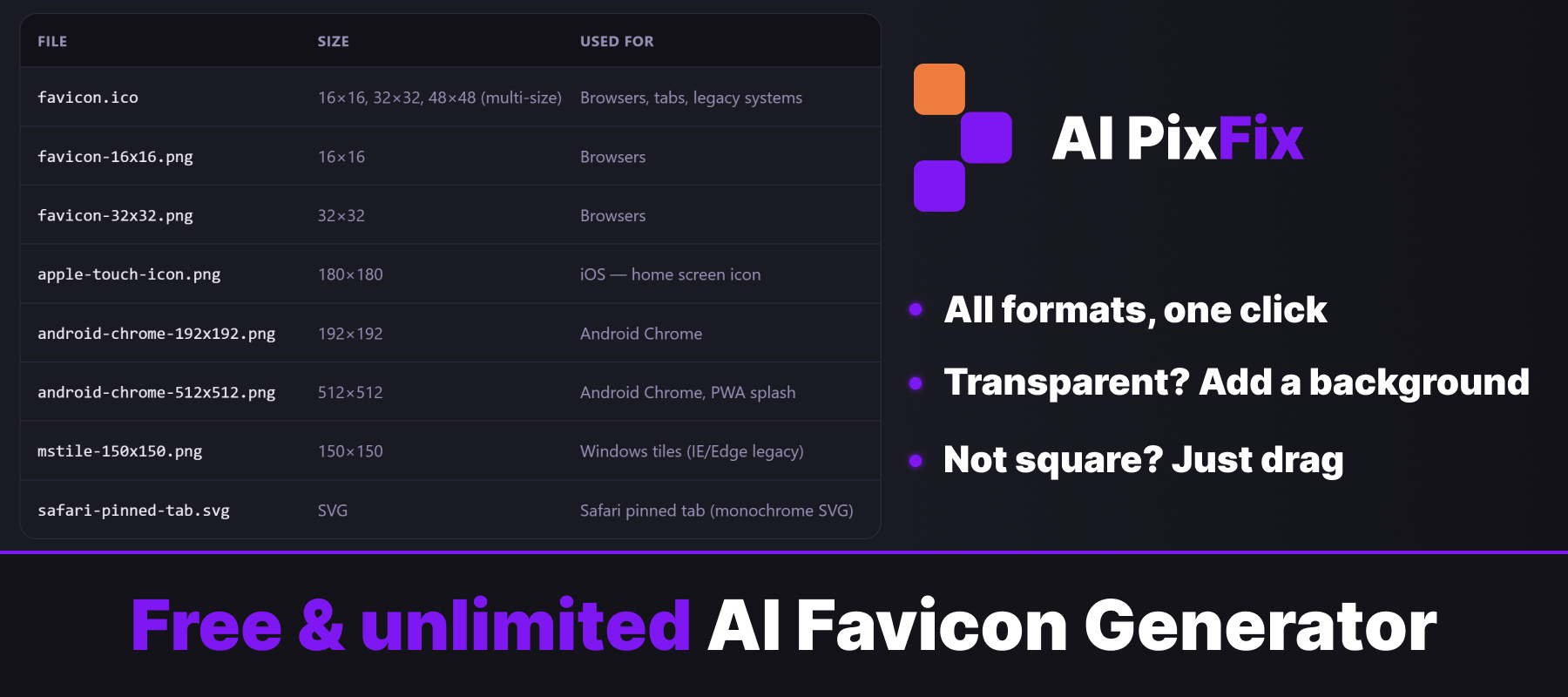
Where favicon files live in Next.js and React projects
Both Next.js and the major React build tools (Create React App, Vite) treat everything inside a top-level public/ folder as static, served verbatim at the corresponding URL. Drop the archive into public/ and public/favicon.ico becomes /favicon.ico on the live site — which is exactly where the link tags below expect it.
Next.js also recognises a special convention in the App Router: a file named icon.png or icon.svg in the app/ folder is auto-injected as a favicon link by the framework — see the Next.js icon convention docs. That helper covers the basic favicon but not the full set, so the recommendation is to keep the complete archive in public/ and either drop the App Router auto-icon entirely or treat it as one of the bundled files.
In a Create React App or Vite project, the public/ folder behaves the same way: files inside it are copied to the build output root, and the link tags go into public/index.html (CRA) or index.html (Vite) inside the <head>.
How to generate the full favicon set from one image
Pick a square source image
SVG is ideal — it scales cleanly to every output size. If SVG is not available, a PNG of at least 512×512 pixels covers the largest output (android-chrome-512×512) without upscaling. JPG and WebP work but produce noticeably worse small sizes.
Open the favicon generator and drop the file
Drag the image into the upload area. The tool runs entirely in your browser; the image is never uploaded to any server, which matters for brand assets that should not sit on third-party storage.
Crop to a square if the source is not already
Non-square sources trigger a 200-pixel square viewport with the image inside it. Drag the image to choose which square region becomes the icon. The full master canvas is rendered at 1024×1024.
Add a background color for transparent logos
Transparent PNGs and SVGs trigger a hex colour picker. Pick a flat backdrop so the icon stays readable on both light and dark OS themes — useful for monochrome logos that need contrast on a dark macOS dock or a light Windows taskbar. Leave the background transparent if your icon is designed for both already.
Save the ZIP archive
Click Save archive. The ZIP contains every file your site needs — favicon.ico (multi-size), the PNG variants, the Apple touch icon, the Safari pinned-tab SVG, plus the site.webmanifest and browserconfig.xml manifests.
Drop the archive into public/ and add the link tags
Unpack the archive into the public/ folder of your Next.js or React project, then add the link tags shown below into the <head> of your layout file.
Wiring the link tags in your framework
The exact place to add the link tags depends on whether the project is a Next.js App Router app or a non-Next React app on CRA / Vite. Both options below assume the ZIP has already been unpacked into the public/ folder.
Next.js App Router
In a Next.js 13+ App Router project, the favicon link tags belong in the metadata export of your root app/layout.tsx. The framework renders the corresponding <link> elements into every page's <head> automatically.
// app/layout.tsx
export const metadata = {
  icons: {
    icon: [
      { url: "/favicon.ico", sizes: "any" },
      { url: "/favicon-32x32.png", type: "image/png", sizes: "32x32" },
      { url: "/favicon-16x16.png", type: "image/png", sizes: "16x16" },
    ],
    apple: { url: "/apple-touch-icon.png", sizes: "180x180" },
    other: [
      { rel: "mask-icon", url: "/safari-pinned-tab.svg", color: "#000000" },
    ],
  },
  manifest: "/site.webmanifest",
  other: { "msapplication-config": "/browserconfig.xml" },
};
Reference for the metadata fields: Next.js metadata API.
Create React App / Vite
For a non-Next React app, the link tags go straight into the HTML entry file — public/index.html in Create React App, index.html at the project root in Vite — inside the <head>. Use the literal HTML form below; both build tools serve them verbatim:
<link rel="icon" href="/favicon.ico" sizes="any">
<link rel="icon" type="image/png" sizes="32x32" href="/favicon-32x32.png">
<link rel="icon" type="image/png" sizes="16x16" href="/favicon-16x16.png">
<link rel="apple-touch-icon" sizes="180x180" href="/apple-touch-icon.png">
<link rel="mask-icon" href="/safari-pinned-tab.svg" color="#000000">
<link rel="manifest" href="/site.webmanifest">
<meta name="msapplication-config" content="/browserconfig.xml">
<meta name="theme-color" content="#ffffff">
Reference for each link relation: MDN — <link> element and MDN — Web app manifest.
Verifying the favicon set after deploy
After deploying, two fast checks confirm the set is wired up correctly. Open the live site in a desktop browser and open DevTools → Network → Img. Reload the page and look for the favicon requests — every file in your archive should appear as a 200 response, not a 404. Then visit your-site.com/site.webmanifest directly in the browser — it should serve a JSON document, not a 404 HTML page.
On mobile, add the site to the iOS home screen and the Android home screen. The correct apple-touch-icon and android-chrome-192 icons should appear, not a generic fallback. If a fallback shows up, the asset path is wrong in the link tag — fix the tag, redeploy, and clear the home-screen shortcut before retesting.
Where most favicon tutorials get it wrong
A surprising number of guides still recommend uploading a single PNG to a hosted service that processes the image on a server, emails you a link, or limits the free output. The browser-based favicon generator on AI PixFix takes a different approach: the entire pipeline runs in the page, so your image never leaves the device, there is no account, and the free tier is the complete tier — every file the modern web needs is in the ZIP.
For a Next.js or React project that is already running everything else in-browser (build, test, preview), it would be odd for the favicon to be the one step that uploads your brand asset to a third-party server. Generate the full set with the favicon generator, drop the archive into public/, paste the link tags from the section above.
Frequently asked questions
Where do favicon files go in a Next.js project?
In the public/ folder at the project root. Files dropped into public/ are served at the same path on the live site — public/favicon.ico is reachable at /favicon.ico. Next.js also recognises a top-level app/icon and app/apple-icon convention in the App Router, but using public/ keeps the same files compatible with any other framework if you ever move the project.
Where do favicon files go in a Create React App or Vite project?
In the public/ folder. Both Create React App and Vite copy everything in public/ verbatim into the built site root, so public/favicon.ico ends up served at /favicon.ico in production. The link tags go into public/index.html (CRA) or index.html (Vite) inside the <head>.
Do I really need ten favicon files?
If you want the icon to look right on iOS home screens, Android home screens, Windows pinned tiles, Safari pinned tabs, Google Search mobile, and modern browser tabs — yes. Each platform invented its own convention independently, and none of them agreed on one format. Ten files plus two manifests covers every modern surface without compromise.
Is the generator uploading my logo to a server?
No. The generator reads your image in the browser, renders a 1024×1024 master canvas locally, and downscales every output size from there. The ZIP is assembled on your machine and downloaded directly — nothing is sent to AI PixFix, which matters for brand assets you would not want sitting on third-party storage.
What if my logo is wider than it is tall?
The generator shows a square crop viewport over the image. Drag the image inside the viewport to pick exactly which square region becomes the icon. Wide brand SVGs and rectangular logos get treated the same way as square ones — you pick the region, the tool renders it onto the master canvas, every output size follows from there.
Drop a logo, get every favicon file your Next.js or React app needs, unpack into public/, paste the link tags. Five minutes, no upload, no account.