August 14, 2026 · Add Background
Add a Background to a Cutout PNG in Seconds (No Photoshop Needed)
You already have a transparent PNG — a subject sitting on an alpha channel, edges cut and ready — and the only thing missing is the backdrop behind it. Opening a full desktop suite for one composite is out of proportion with the task. Our add background to PNG image tool skips the suite entirely: two drops, a bit of colour matching, a download. No account, no daily cap, no watermark, and the cutout never leaves your device.
Why a focused browser tool beats Photoshop for this one job
Photoshop is a general-purpose image editor with hundreds of features, and it does a fine job of dropping a cutout on a backdrop — with layers, masks, adjustment layers, blend modes, and a project file. If you already live inside Photoshop every day, that is the right tool for you.
For everyone else, the setup cost is out of proportion. Install (or subscribe), open the app, create a document at the right size, drag the backdrop onto a background layer, drag the cutout onto a new layer, resize with Free Transform, and then hunt through the panels for Hue/Saturation, Curves, and Color Balance so the subject stops looking pasted on. That is a lot of scaffolding for a task that is fundamentally "paint layer B on top of layer A and match the colours."
A focused compositor collapses that whole workflow into one screen. Upload the cutout on the left, upload the backdrop on the right, position, colour-match, download. There is no project file, no layer panel, no panel hierarchy — just the four controls this specific job actually needs.
Drop your cutout onto a new backdrop in 4 steps
The free background changer is organised as four short stages. Nothing is committed until you hit Save, and every step has an undo (up to five history frames) if you change your mind.
Drop your transparent PNG (or up to five)
The left panel accepts PNG or WebP files with an alpha channel. Up to five separate subjects can share the same backdrop — a multi-product shot or a family composite is one export, not five.
Drop the new background image
The right panel takes JPG, PNG, or WebP. The backdrop sets the canvas dimensions and aspect ratio of the final export, so pick a file at the size you want the output — a stock photo, a brand-color block, a texture, or a photo of your own.
Position, scale, rotate each subject
Click a subject to reveal its frame. Drag inside to move, drag a corner to scale, drag the rotation handle above the frame to spin. Each of the up-to-five subjects has its own independent placement — they don't fight for the same anchor point.
Match the colors and download
Open the per-layer color-correction tab (brightness, contrast, saturation, hue, temperature) and match the subject to the backdrop. When the composite looks right, download as PNG (preserves any transparency) or JPG (quality 0.95, smaller file). No watermark is added.
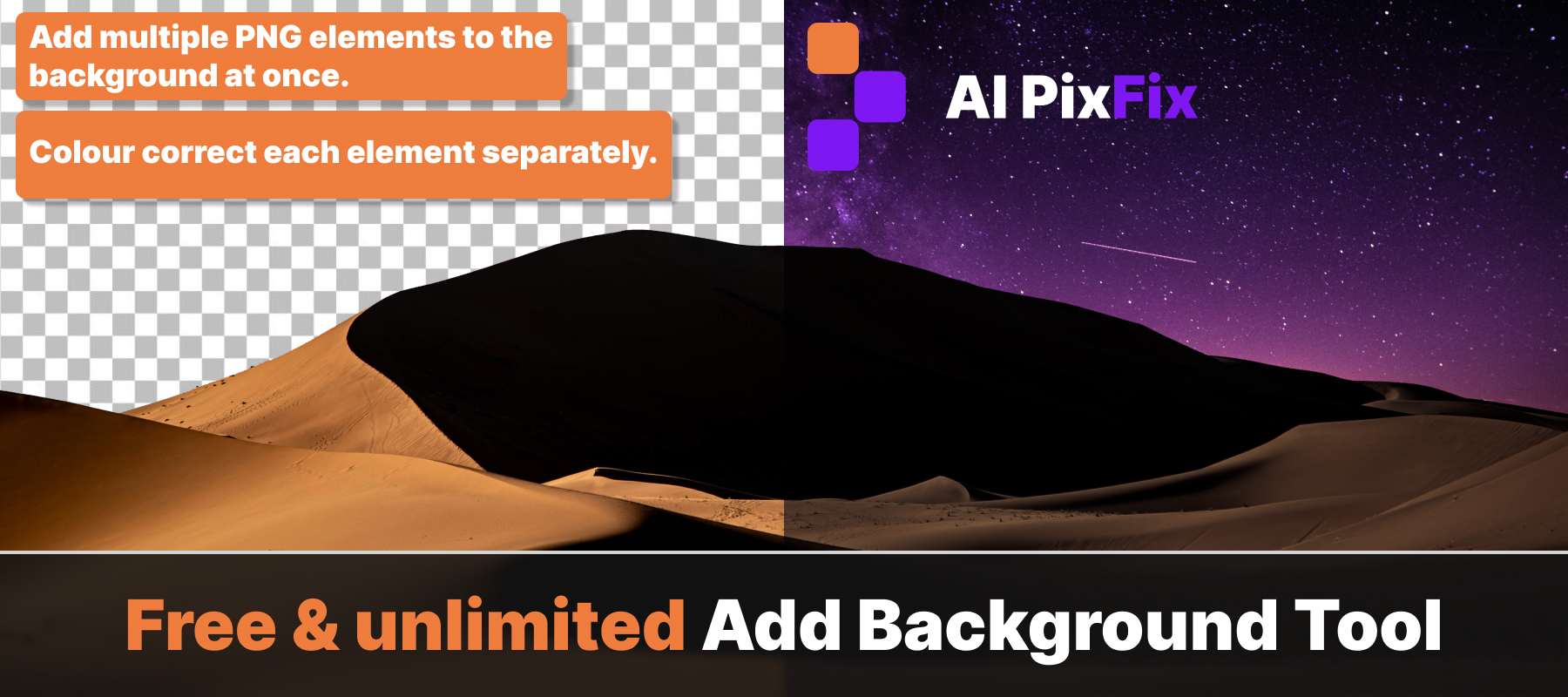
Per-layer color matching — the part that hides the paste-up
The reason most quick composites look fake is a colour-temperature mismatch: a subject shot under cool studio light, dropped onto a warm sunset backdrop, reads instantly as pasted on. The human eye picks up colour temperature before it registers edge quality. Fixing it in the compositor — per layer, not globally — is the difference between a cutout and a believable photo.
Match the overall luminance of the subject to the backdrop. A cutout from a bright outdoor shot usually needs −10 to −25 to settle into an indoor or evening backdrop.
Tune the punchiness of the subject relative to the background. Soft, low-contrast backdrops want a small contrast pull-down on the subject so it doesn't pop unnaturally.
Bring the colour intensity in line with the rest of the frame. A vivid stock cutout on a muted backdrop almost always needs −15 to −30 to read as one scene.
Rotate the colour wheel for that one layer. Useful when the subject's overall colour cast disagrees with the backdrop — a slightly green skin tone against a warm wall, for example.
Warm or cool the subject without touching the backdrop. The single most useful slider for matching outdoor / indoor / studio mismatches, and the one most quick compositors don't expose at all.
Every slider has undo. The Reset button on each tab clears that one layer's settings without touching the others. Wrong call is free.
When the "no Photoshop" workflow is enough
A focused compositor covers the majority of everyday composite jobs: a product photo that needs a branded backdrop instead of plain white; a portrait that needs a studio gradient or a textured wall; a social-media post with a subject on a brand-color block; a slide deck header with the same subject on every slide. None of those tasks need adjustment layers, blend modes, or a full project file.
Where Photoshop is genuinely irreplaceable is heavy retouching: liquify, frequency separation, complex masking with paths, print-CMYK proofing, custom brushes, and multi-hundred-layer artwork. If your job is compositing hair against a matching wig for a fashion editorial, use Photoshop. If your job is dropping a cutout onto a new backdrop and shipping the file — the online background swap tool is faster.
First-time users typically get to a finished composite on their first try. There is nothing else on screen to figure out.
How "no upload" actually works
The composite runs through the HTML Canvas API in the browser. Your transparent PNG and the backdrop are read as local files, composited on a Canvas, and downloaded back to your device. Nothing is uploaded, nothing is stored between sessions, and the tool keeps working with the network unplugged once the page has loaded.
Because there is no per-image server cost, there is no reason for restrictions. AI PixFix adds no watermark, applies no daily cap, and requires no sign-up. The PNG or JPG you download is the exact composite you built, at the dimensions of the backdrop you supplied.
The alpha compositing math is the standard source-over blend used by every modern rendering pipeline, so the edges of your cutout come through exactly as authored — no posterisation, no fringe artefacts on the way to the final file.
Frequently asked questions
Do I really not need Photoshop to add a background to a cutout PNG?
You don't. Placing a transparent PNG on a new backdrop is a compositing task — a single Canvas paint plus per-layer color adjustment. It doesn't need layer panels, masks, brushes, or any of the parts of Photoshop that make it heavy. A focused browser tool does the same job in seconds.
Does the cutout have to already be transparent?
Yes, for best results. A transparent PNG (a PNG with an alpha channel) is what lets the new background show through around the subject. If your source is a JPG or a PNG with a solid background still baked in, remove the background first, then bring the cutout here. JPG and WebP inputs are accepted but will paste as opaque rectangles.
How many cutouts can I place on one background?
Up to five separate transparent PNG subjects on one backdrop. Each subject is moved, scaled, rotated, and color-corrected independently — a family portrait, a multi-product shot, or a lineup of icons all fit in one export instead of five.
Is my image uploaded to a server?
No. The tool runs entirely inside your browser using the HTML Canvas API. The cutout PNG and the new backdrop are read from your device, composited locally, and downloaded back to you. Nothing leaves your machine, nothing is stored between sessions.
What can I export, and is there a watermark?
PNG (keeps any leftover transparency) or JPG (quality 0.95, smaller file for the web). No watermark is added, no daily cap applies, no account is required. The exported file matches the dimensions of the background image you supplied.
Drop your cutout, drop the backdrop, match the colours per layer, download the file — no account, no daily cap, no watermark.
Add a background to your cutout