May 20, 2026 · Blur Face
How to Hide a Child's Face in a Family Photo Before Sharing
Family photos are some of the warmest pictures we take — a first day of school, a birthday, a holiday on the beach. They are also some of the most exposing. Posting them publicly turns a child's face into something a stranger can save, screenshot or feed to a reverse image search, years before the child is old enough to decide whether they wanted that. The compromise a lot of parents reach is simple: share the moment, hide the face. This guide is about doing exactly that — how to blur a face in a picture cleanly, which censor style actually protects identity, and what else you should think about before the photo leaves your phone.
Why parents hide a child's face before posting
The habit even has a name — sharenting — and the reasons people pull back from it are very ordinary. A co-parent prefers the child not be identifiable online. A grandmother is happy to share a class photo with the family but not with the world. A teacher wants to post a classroom celebration without revealing who is whose kid. A family living with safety concerns — custody disputes, an estranged relative, an abusive ex — needs to keep faces and locations out of search engines entirely.
And there is the longer game. A face uploaded to a public feed today can be scraped, embedded into a face-search index, or quietly used to train a model. The child has no say in any of it. Hiding the face is not paranoia — it is the same instinct that makes you cover a credit card number in a screenshot. The picture is fine; the part that uniquely identifies a person is the part you remove.
Four ways to censor a face — and when to use which
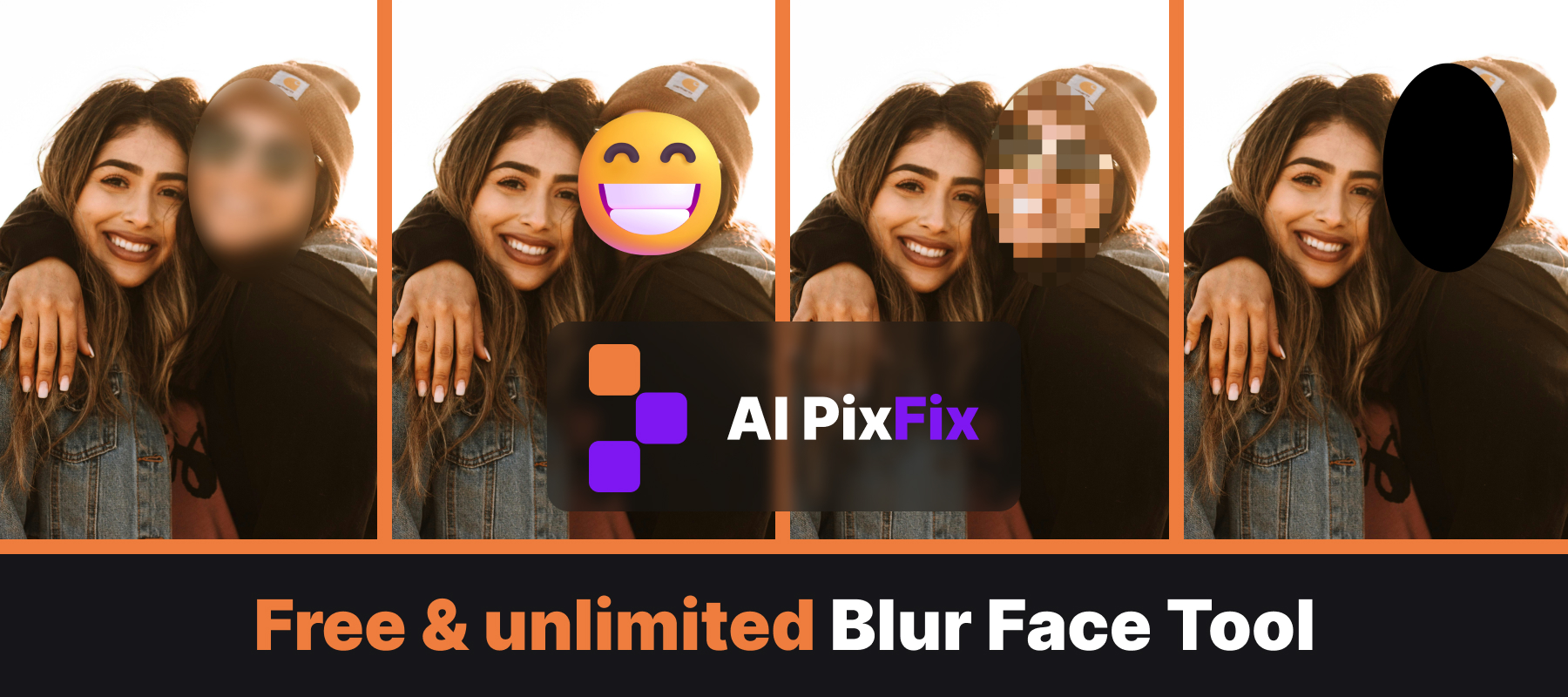
“Blur the face” is shorthand for at least four different effects, and they are not equivalent for hiding identity. The free blur face online tool gives you all of them on the same shape so you can pick the right one for the situation:
- Transparent blur — softens the area under an oval. Reads as intentional and blends into the photo, which is why it is the default choice for “blur for face” on social media. Push the intensity slider higher when the face must be unrecognisable; a gentle blur is not enough on a sharp portrait.
- Pixel mosaic (face pixelate) — replaces the area with a grid of large coloured squares, the classic mosaic censor used on TV. Stronger than blur at the same visual size because identity-preserving features collapse into a few cells.
- Solid black bar — wipes the face entirely. No information left under the shape means nothing to reconstruct. Reads serious; use it when the photo is for a formal context or a screenshot in a news piece.
- Emoji cover-up — drops a yellow face emoji at the same size and position as the shape. The friendliest option for a family feed: the child stays anonymous and the post still feels playful.
How to hide a child's face, step by step
Open the editor
Open the blur face online editor in your browser and drop the family photo in. PNG, JPG, WebP, AVIF and HEIC are all accepted, and the photo never leaves your device — everything happens locally.
Add a shape over the face
Click Circle for a head-on portrait or Oval for a face caught at an angle. The shape drops in the centre of the photo with corner handles for a uniform resize.
Drag and resize over the face
Move the shape until it sits over the child's face, then pull a corner to scale it. Keep the shape a touch larger than the visible face — eyes, hairline and ears all carry identity, not just the centre of the face.
Pick a censor style
Switch the style from Transparent blur to Pixel mosaic, Solid black or Emoji depending on the look. For a child in a public post, mosaic on a strong setting or an emoji is the safest pick.
Repeat for every face in the photo
Add another circle or oval for the next face — siblings, cousins, the friend who showed up in the corner of the shot. Each shape is independent and can have its own style.
Save
Click Save result and download the photo at its original resolution and format, with the file name appended with “censored by AI PixFix” so you can tell the safe copy from the original.
How free blur-face tools compare
iLoveIMG and Watermarkly are perfectly capable blur tools — if a smooth Gaussian blur is all you need, both will get the job done. The difference is the censor menu. They give you one knob: blur. The AI PixFix tool gives you four, so you can swap the effect per face without re-uploading the photo.
The practical effect of that gap is choice. A transparent blur is great on adults at a wedding but is the weakest option on a child's sharp face — and the only fix on a blur-only tool is to crank the intensity until the rest of the photo looks strange. On the AI PixFix blur face tool you can leave the rest of the picture untouched and switch just the child's face to mosaic or an emoji.
Privacy details people forget before they post
Hiding the face is the headline, but a photo can leak more than a face. Before the picture goes out, scan it for anything else that uniquely points to the child:
- School and club logos — uniforms, badges, hoodies, water bottles. Drop a shape over the logo the same way you did for the face.
- Names on bags, lockers and homework — name tags on a backpack, a worksheet on a fridge, a custom T-shirt with initials. Easy to miss, easy to censor.
- Backgrounds that locate you — a school sign, a bus route number, a street sign, the house number on a door. The same shape tool covers any of them.
- GPS coordinates inside the file — phone cameras tag every photo with the location it was taken. The visible image can be perfectly censored and the metadata can still tell a stranger where the photo was shot.
The shape tool can fix everything in the visible frame in one pass — drop circles or ovals as needed and pick a censor style per shape. The file's metadata is a separate problem; most modern social platforms strip GPS on upload, but if you are sharing the photo by email, in a Telegram channel or anywhere that keeps the original file intact, strip the location before you send it.
Will a blur really protect identity?
Honest answer: a strong censor will, a weak one might not. A gentle blur on a high-resolution portrait can leave enough structure for human recognition by anyone who already knows the child, and research models trained on deblurring have shown that light Gaussian smoothing is partially reversible. Pixel mosaic has the same caveat at high cell counts — the more cells you show, the more information remains.
The fix is to lean stronger when it matters. Push the blur intensity to the upper half of the slider on a small face. Drop the pixel count so the mosaic is chunky, not fine. Or skip the partial censors entirely and use solid black or an emoji — both fully replace the pixels under the shape, leaving nothing to recover. For a child's face on the public internet, that extra step is the difference between a censor that feels safe and a censor that is.
Frequently asked questions
Is it really safe to share photos of my kids on social media at all?
There is no perfectly safe answer — a public account exposes more than a friends-only one, and even a private feed depends on who can re-share. The pragmatic middle ground a lot of parents land on is: post freely, but never with the face visible to strangers. Hiding the face does not delete the moment, it just keeps the child's likeness out of someone else's training data, screenshot folder or reverse image search.
Which censor style protects identity best — blur, pixelate, black or emoji?
Solid black and an emoji cover-up are the strongest because they fully replace the pixels under the shape. A pixel mosaic at a low square count comes next — the larger the squares, the less can be recovered. A light transparent blur is the weakest: at low intensity, modern AI tools have shown that a shape and even rough identity can sometimes be reconstructed. For a child's face on a public feed, pixel mosaic at a strong setting, solid black, or a fun emoji are the safer picks.
Can someone deblur a blurred photo back to the original face?
Light Gaussian blurs and small pixelation grids have been shown to be partially reversible by research models trained on deblurring, especially when the attacker can guess what the image originally was. The reverse becomes essentially impossible once the censor area is opaque (solid black or an emoji), because there is no information left underneath to reconstruct.
Do I need to remove anything else besides the face before sharing?
Often yes. Photos can leak more than a face: a school logo on a uniform, a name on a backpack, the bus number behind you, a house number on the door. Crop or paint over anything that uniquely identifies the child's school or home. Phone photos also carry GPS coordinates in their metadata — strip them before posting.
Is the AI PixFix blur face tool really free with no upload?
Yes. The photo is decoded and censored entirely in your browser — nothing is sent to a server, there is no daily cap and no watermark. You can hide as many faces as you want, in as many photos as you want, and download each one at its original resolution and format.
Share the moment, not the face. Open the blur face tool in your browser — pick a transparent blur, pixel mosaic, solid black or an emoji cover-up, save at the original resolution, and post with peace of mind.
Hide a child's face now