May 11, 2026 · Color Picker
How to Pick the Exact Color of a Pixel in an Image
Eyeballing a colour from a photo is one of those small daily problems with a surprising number of failure modes. Squint at the image, guess the HEX, paste it into your CSS, and the rendered result looks nothing like the screenshot you were trying to match. The cause is almost always the same — your eye averaged a region of the photo while what you actually needed was the value at a single pixel. The fix is a proper pixel-precise pipette with a magnifier, and the color picker from image on AI PixFix does exactly that, in the browser, without uploading the photo anywhere.
Why pixel-exact accuracy actually matters
Photographs are not flat colour swatches. Even a region your eye reads as “solid red” is actually thousands of pixels with subtly different RGB values, varied by lighting, JPEG compression, anti-aliased edges, and sensor noise. A region-averaging pick gives you a colour that is technically present somewhere in that area, but is almost never the colour at the centre of the subject. The result feels “close but wrong”.
Pixel-exact sampling sidesteps all of that. The browser decodes the image into a flat RGBA grid through the standard Canvas getImageData API, you click one pixel, and you get back the exact integer triplet stored at that coordinate. No averaging, no rounding, no guesswork. From there it is a one-step conversion into a HEX string that you can paste into Figma, your design tokens, or a CSS file.
The tricky part is reaching the right pixel. On a 4000-pixel-wide photo, your cursor covers dozens of pixels at once. Without a magnifier, you cannot tell whether you clicked the highlight or the shadow next to it. That is what the loupe is for.
Who uses a pixel color picker, and why
The need shows up in more workflows than most people realise. A short tour of the people who reach for a pipette on a photo every week:
Sample exact colours from a competitor mockup screenshot, a Dribbble shot, or a delivered Figma export to recreate or harmonise a palette in their own design system without re-eyeballing each shade.
Pull HEX values out of a design handoff that arrived as a flat JPG or PNG, when the source Figma file is locked behind permissions or the designer is on holiday. One pixel pick, paste into CSS, ship.
Capture the exact brand colours used in a competitor logo, a sponsored Instagram post, or a printed flyer photographed on a phone. Useful for competitive audits and for matching a partner brand on co-marketing pages.
Build a reference palette from a photograph — skin tones, fabric, foliage — to lock in believable colour relationships before painting. A loupe pick is more reliable than a hand-mixed swatch on a tablet.
Match the colour of a fabric sample, a wall paint, or a piece of furniture photographed under natural light, then convert it into a HEX value for a moodboard or a supplier catalog.
Reconstruct the palette of an inspirational reference frame or a vintage sprite sheet, picking each colour exactly once so the result reads as the same family rather than a near-miss approximation.
Sample the colours of a published chart or infographic in order to extend it — add a new series in a colour that genuinely matches the rest of the deck rather than clashing with it.
Read the value of a known reference patch (a grey card, a known fabric) to match exposure or white balance between frames in a series. Pixel-exact reading beats memory and eyeballed comparison.
How to pick the exact color of a pixel — step by step
Open the color picker and drop your image
Drag a JPG, PNG, WebP, AVIF, GIF or BMP into the upload zone, or click to browse. The file is decoded entirely inside the browser — nothing is uploaded to a server.
Switch on Manual color picker
In the right-hand panel, toggle Manual color picker. Your cursor turns into a pipette, and a loupe magnifier follows it across the image showing the pixel under the tip enlarged, with its HEX value floating beside it.
Click the exact pixel you want
Slide over the area of interest, watch the HEX update as the pipette moves, and click when the loupe is on the exact shade you want. The picked colour drops into the active slot in the palette strip at the top.
Pick more colours, or copy the value
Each click advances to the next empty slot, so you can build up a multi-pixel palette without re-toggling anything. The right-hand list shows every picked colour with HEX, RGB and HSL — each value has its own one-click copy button.
Save and download
Click Save, then download a PNG strip of the picked palette or a TXT file listing the closest colour name, HEX, RGB and HSL for each colour. Both files are watermark-free.
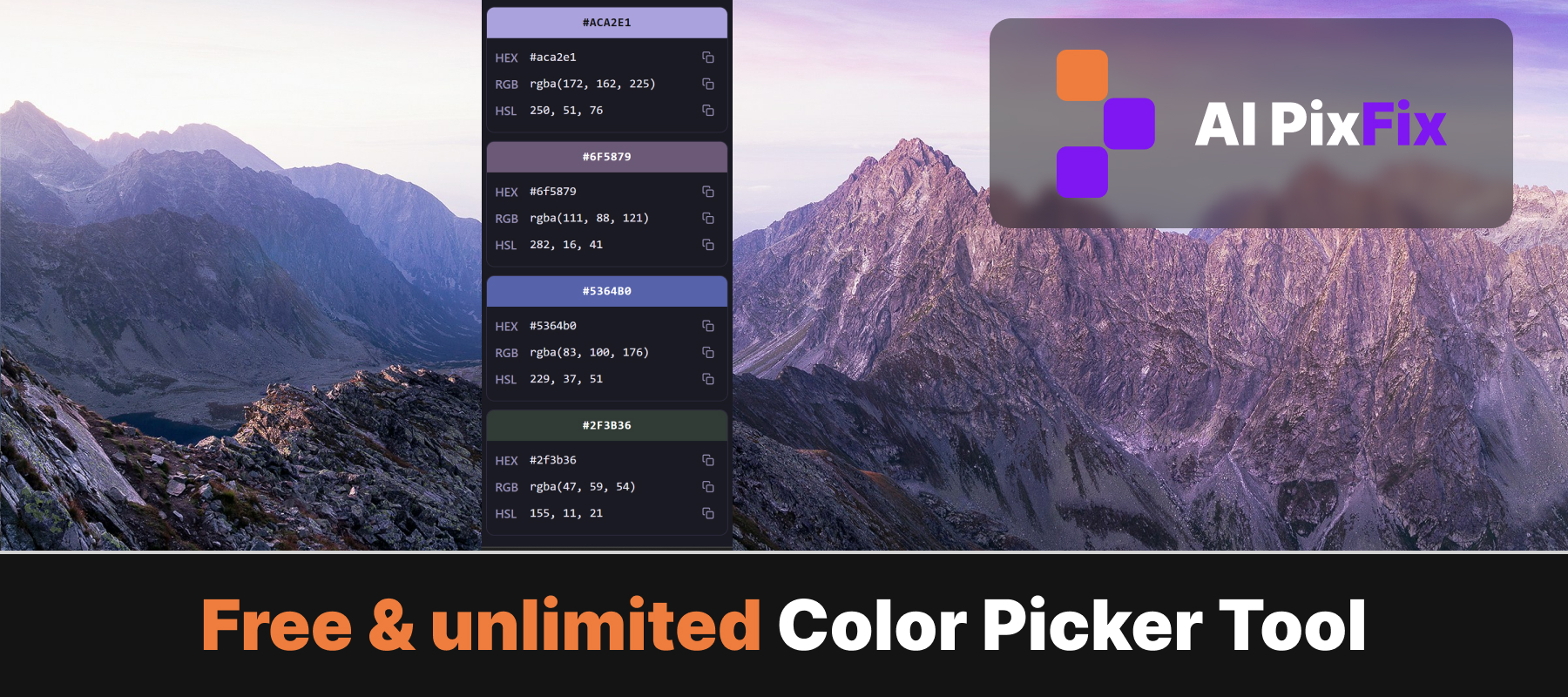
HEX, RGB and HSL — which value do you actually need?
The picker returns the same colour in three formats. They are not alternatives in a colorimetric sense — they are three different ways of writing down the same RGB triplet, and the right one depends on where the value is going.
HEX is the default for CSS, Figma, design tokens and brand guidelines. It is compact (#8A00FB), portable, and recognised by every graphics tool. RGB exposes the underlying channels (rgb(138, 0, 251)) and is the value you want when working with the canvas API, image processing code, or any tool that needs a tuple rather than a string. HSL — hue, saturation, lightness — is more useful for thinking about colour relationships: HSL and HSV let you nudge a single channel (“same colour, a little darker”) without recomputing the whole triplet by hand.
Every value sits next to its own copy button, so the flow is single-click pick, single-click copy, paste into whichever surface needs it. Each colour also gets a closest English colour name — useful when writing a brand spec or labelling swatches in a doc.
Pixel-exact picking vs automatic palette extraction
The same editor also has an automatic mode that returns the dominant colours of the image — useful when you want a representative palette rather than a specific shade. Internally it samples thousands of pixels and runs a median-cut quantization with farthest-point selection, so the resulting palette is diverse rather than just a handful of nearly identical shades clustered around the most common hue. The shuffle button reseeds the sample for a different read of the same image.
When to use which: automatic for moodboards, branding research and quick palette generation; manual when you need the colour of a specific element — the exact red of a logo, the precise blue of a sky in a hero photo, the skin tone of a portrait at a known reference point. The free pixel color picker switches between the two with one toggle, on the same image, without re-uploading.
Nothing leaves your browser
The entire pipeline — image decode, pixel sampling, magnifier rendering, palette quantization, format conversion, file export — runs inside the browser tab. Nothing is uploaded, nothing is logged, no account is required, and there is no daily limit on how many colours or images you can run through it. Close the tab and the session is gone.
Other free options in this space include HTMLColorCodes and Image Color Picker. The AI PixFix version of the online color picker from image focuses on a loupe magnifier for single-pixel accuracy, automatic dominant-colour extraction in the same editor, palette saving as both PNG and TXT with colour names, and a no-upload pipeline that runs entirely in the browser.
Frequently asked questions
How accurate is a pixel color picker on a JPG?
It is exact at the pixel level — whatever RGB value the file stores at the coordinate you clicked is what you get back. The only catch is that JPG compression averages neighbouring pixels in 8×8 blocks, so a pixel near a sharp edge may not match the colour your eye expected. Pick a pixel a few steps inside a flat area and the reading is as reliable as the file itself.
Why use a loupe instead of just clicking on the photo?
A loupe magnifier shows the exact pixel under the cursor at several times its real size, with the HEX value floating beside it. Without a loupe, single-pixel accuracy on a high-resolution photo is guesswork — your cursor covers dozens of pixels. The loupe lets you slide across an edge and stop on the precise shade you want before clicking.
Can I pick several pixels and build a palette in one pass?
Yes. Set how many colour slots you want (2 to 16), then click pixels on the image one by one. Each click drops the picked colour into the active slot and advances to the next empty one. You can also click any slot first to set it as the active target before clicking on the image.
Do my images get uploaded when I pick colours?
No. The image is decoded inside the browser using the standard Canvas API. Pixel lookups happen in memory on your own device. Nothing is sent to a server, nothing is stored after you close the tab.
Which colour formats can I copy?
Every picked colour shows its closest English name, HEX, RGB and HSL with a one-click copy button on each value. The downloadable TXT export lists all four for every colour in the palette; the PNG export is a flat strip of the colours themselves.
A pixel-precise pipette with a loupe magnifier, automatic dominant-colour palettes on the same image, HEX, RGB and HSL with one-click copy on every value. Free, in your browser, no upload, no account.
Open the color picker