
May 8, 2026 · Resize Image
How to Resize a Profile Picture for Instagram
You upload a photo as your Instagram profile picture and the result looks soft, slightly off-centre, or cropped through someone's forehead. The image was fine on your phone — what changed? Instagram forces every avatar into a small square, scales it down to a tiny render size, and re-encodes the result. If your source isn't already a square at the right pixel dimensions, the platform makes the call for you, and the call is rarely the one you wanted. The fix is to resize the picture to the exact dimensions Instagram renders before you hand it over. A free image resizer that runs in your browser does the whole job in roughly four clicks — no upload, no account, no watermark on the output.
Why your Instagram profile picture looks blurry or badly cropped
The single most common cause is upscaling. If you hand Instagram a 200×200 px source, the platform stretches it to fill the avatar slot, invents pixels that aren't in the original, and the edges go soft. The technical name for this is image scaling — interpolation can look fine going down, never going up, because there is no extra detail to recover.
The second cause is aspect ratio. Profile pictures are always rendered as a circle inside a square frame. If you upload a 5:7 portrait or a 16:9 phone screenshot, the platform crops a square out of the centre — and the centre of your photo is rarely the part that mattered. Faces drift to one side; logos get clipped; a head loses the top of its hair.
The third is compression. Every upload re-encodes the file. If the source is already a low-quality JPEG, the second encoding pass adds visible blocking around edges and skin tones. Both fixes — the right size and the right shape, on a clean source — are upstream from the platform. Do them before the upload.
The right size to upload (and why bigger is fine)
Instagram renders profile pictures at a small square — roughly 320×320 px on the web and a similar small avatar size in the mobile app. You could upload a 320×320 source, but you shouldn't. The safer target is 1080×1080 px, for two reasons:
- Downsampling is forgiving.Going from 1080 px down to a 320 px render is the case the platform's resize pipeline handles best — it keeps edges sharp and colours stable. Going up does the opposite.
- Display sizes change. Apps add Retina tiers, larger profile views, expanded bottom-sheet previews. A 320 px source pixelates the moment any of those grow. A 1080 px source still has headroom.
The shape matters more than the dimensions. Square, 1:1 aspect ratio. Anything else gets cropped, and the platform decides where. Resize first, crop on your own terms, upload a square.
How to resize a profile picture for Instagram in 4 steps
The pixel-exact image resizer runs entirely in the browser. Drop in any JPG, PNG or WebP up to 50 MB; the workflow below produces a clean 1080×1080 square ready to upload.
Drop the source photo on the upload area
JPG, PNG or WebP, up to 50 MB per file. The tool reads natural width and height and shows them next to the editor — that tells you whether you have headroom (source bigger than 1080 px) or whether you should pick a different photo (source smaller than 1080 px in the smaller dimension).
Type 1080 into both width and height
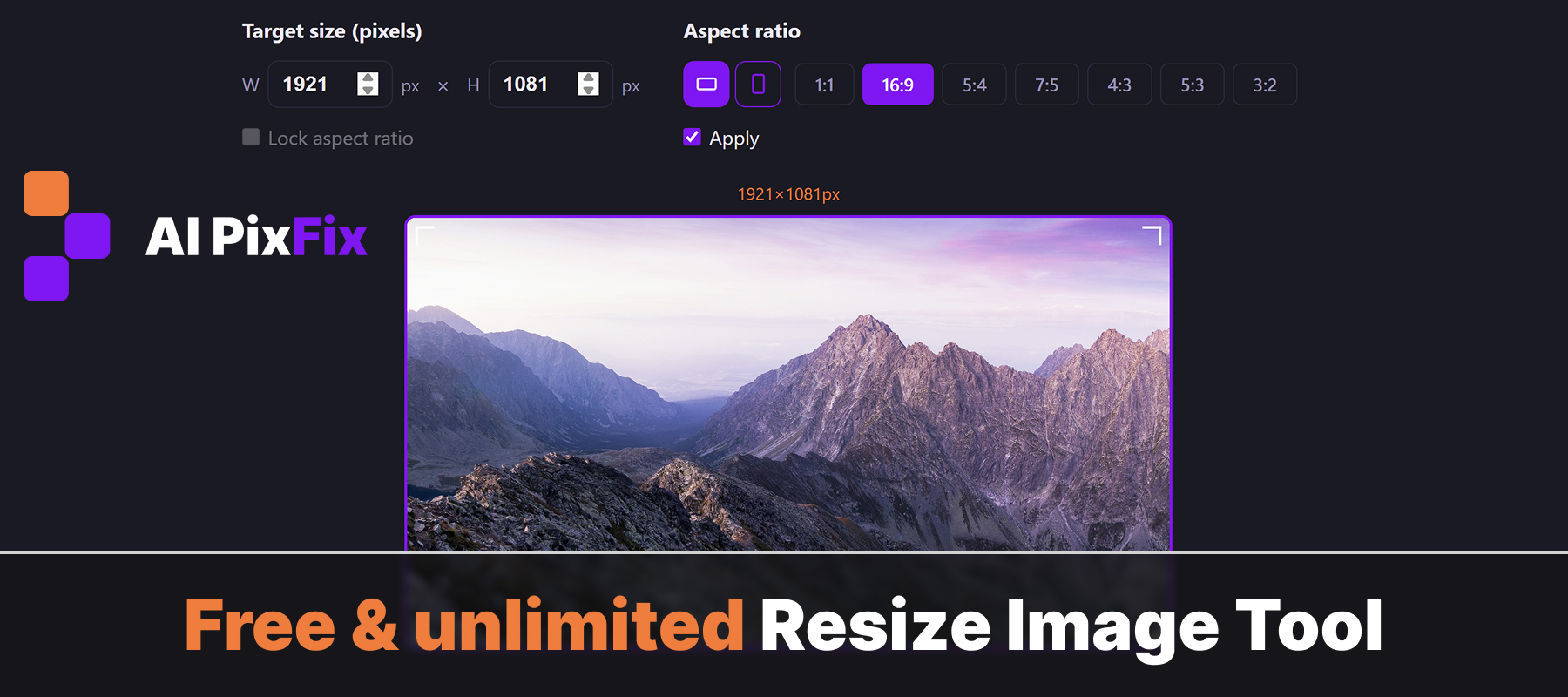
Width and height fields accept any value from 1 to 10 000 pixels. Type 1080 into both. The Lock aspect ratio checkbox should be off here — you actively want a square, even if the source is rectangular. The crop frame appears the moment width and height stop matching the source ratio.
Drag the crop frame to keep what matters
When the target ratio differs from the source, a draggable square preview appears on top of the image. Drag it so the part you want to keep — usually a face — sits inside the frame. The grey area outside is what gets discarded on save. Aspect ratio is never squashed; only the overflow is cropped.
Save and download
Click Save. The tool renders the result on a 1080×1080 canvas with the browser's high-quality smoothing enabled, opens the saved view, and offers PNG, JPG or WebP downloads. PNG keeps transparency if your source has any; JPG is the smallest file for photographs; WebP is the modern best of both.
Same recipe, different sizes — Twitter / X, LinkedIn, Discord
The workflow above transfers to every other platform that uses square or near-square avatars. Only the target pixel count changes. As a rule of thumb, pick a square at the upper end of the documented render size — you give the platform room to downscale and stay sharp on Retina displays.
| Platform | Aspect ratio | Suggested upload size |
|---|---|---|
| 1:1 square | 1080 × 1080 px | |
| Twitter / X | 1:1 square (rendered as circle) | 400 × 400 px or larger; 1080 × 1080 is safe |
| 1:1 square | 800 × 800 px or larger | |
| Discord | 1:1 square | 512 × 512 px or larger |
The procedure inside the resizer is identical: type the target dimensions into width and height, drag the crop frame to keep the face or logo, save. PNG if you need transparency (LinkedIn and Discord both render PNG avatars cleanly), JPG or WebP otherwise.
Beyond profile pictures — what else people resize for
A profile picture is a small slice of the resize problem. The same tool covers a wide range of everyday tasks where the input image and the target slot don't match:
- Email attachments. Mail providers soft-cap attachment size — a 24 MP phone photo is far more than the recipient needs. Resizing the longest edge to 1600 px or 2000 px drops the file to a fraction of the original without visible loss.
- Marketplace and e-commerce listings. Etsy, eBay, Shopify and other storefronts each have a preferred image size for product galleries. Pre-resizing avoids the platform's own re-encoding pass and keeps colour-accurate edges.
- Blog post hero images. A 4 K-wide JPEG from your camera is wasteful for a 1200 px-wide blog column. Resizing first improves page weight and Core Web Vitals — a direct ranking signal for the post.
- Print at a specific DPI. A 6×4 inch print at 300 DPI needs a 1800×1200 px source. Resize first, send to the lab second.
- Banner and cover images.Header and cover slots are wide rectangles, almost never matching a phone photo's 4:3 or 3:2 aspect. Resize plus an explicit crop area gives you control over what stays and what goes.
Frequently asked questions
What size should an Instagram profile picture be?
Instagram displays profile pictures as a small circle, typically rendered around 320×320 pixels on the web and a similar small size in the app. Uploading a square image at 1080×1080 px gives the platform plenty of pixels to scale down cleanly, which is what you want — start bigger than the display size, never smaller.
Why does my profile picture look blurry after I upload it?
Two reasons cover almost every case. First, the source image is smaller than the rendered size, so the platform scales it up and softens edges. Second, the source has a non-square aspect ratio, so the platform crops it and re-encodes — quality loss compounds. Resizing to a clean square at 1080×1080 px before uploading fixes both problems at once.
Can I keep the original aspect ratio while resizing?
Yes. The resize tool has a Lock aspect ratio checkbox — when enabled, changing the width updates the height proportionally and vice versa, so the image is never stretched or squashed. For profile pictures the goal is the opposite (a 1:1 square), so you would either uncheck Lock and type 1080 into both fields, or pick the 1:1 ratio preset.
Will my photo be uploaded to a server?
No. The whole resize pipeline runs locally in your browser using the Canvas API. The image is read off your disk, scaled in memory, and offered to you as a download — nothing is sent to a server, nothing is logged, and the file is gone from memory the moment the tab closes.
What output formats does the tool support?
PNG, JPG and WebP. PNG keeps an alpha channel if your source has transparency. JPG is the smallest file for full-colour photos. WebP gives modern compression with better quality at the same file size — most platforms now accept it, including for profile pictures.
Drop a source photo, type 1080 into both width and height, drag the crop frame to keep the face, save a clean square. Unlike platforms such as iLoveIMG or ImageResizer.com, you don't need to register or pay for a tier to get unlimited access to the resize image online workflow — no account, no daily cap, no watermark. The tool handles every other platform's avatar size with the same four clicks.
Open the resizer