May 7, 2026 · Add Background
How to Add a New Background to a Transparent PNG Online (Free)
You already have a clean cutout — a transparent PNG with the subject sitting on an alpha channel — and you just want to drop it onto a different backdrop without re-learning a desktop suite. That is exactly the case our add background to PNG image tool is built for: upload your PNG on the left, upload the new background on the right, position your subject, match the colors so it stops looking pasted on, and download. No account, no daily cap, no watermark — and the photos never leave your device.
Why swap the background of an existing PNG instead of cutting a new one
A transparent PNG is the finished product of cutout work — the alpha channel already separates the subject from whatever was behind it. Re-uploading the original photo to a background remover would throw that work away and start from zero. Bringing the existing PNG straight to a compositor is faster, keeps edge-quality intact, and lets you preserve any manual corrections you already made (brush refinements, hair edges, soft shadows).
The typical reasons to do this: a product photo for an online store needs a branded backdrop instead of plain white; a portrait needs a studio-style gradient or a textured wall; a social-media post needs a clean color block; a presentation slide needs a subject lifted onto a brand-color frame. None of those tasks need a full image-editing suite — they need a focused composite step.
How to drop your cutout onto a new backdrop in 4 steps
The free background changer is structured as four short stages. Nothing is locked until you hit Save, and every step has a working undo if you change your mind.
Upload your transparent PNG (or up to five)
Drop your cutout onto the left panel — PNG or WebP, with the subject already on an alpha channel. The tool accepts up to five separate subjects on the same backdrop, so a multi-product shot or a family composite is one workflow, not five exports.
Upload the new background image
Drop any photo onto the right panel — JPG, PNG, or WebP. The backdrop sets the canvas dimensions and aspect ratio. Use whatever you want: a stock photo, a brand-color block exported from a design tool, a textured surface, or a previous photo of yours.
Position, scale, rotate each subject
Click any subject to reveal its frame. Drag inside the frame to move it, drag a corner handle to scale it, drag the rotation handle above the frame to spin it. Each of the up-to-five subjects has its own placement — they don't fight for the same anchor.
Match the colors and download
Open the color-correction panel and tune brightness, contrast, saturation, hue, and temperature for each layer separately (more on that below). When the composite looks right, download as PNG (preserves any transparency) or JPG (smaller file at quality 0.95). No watermark gets added to the export.
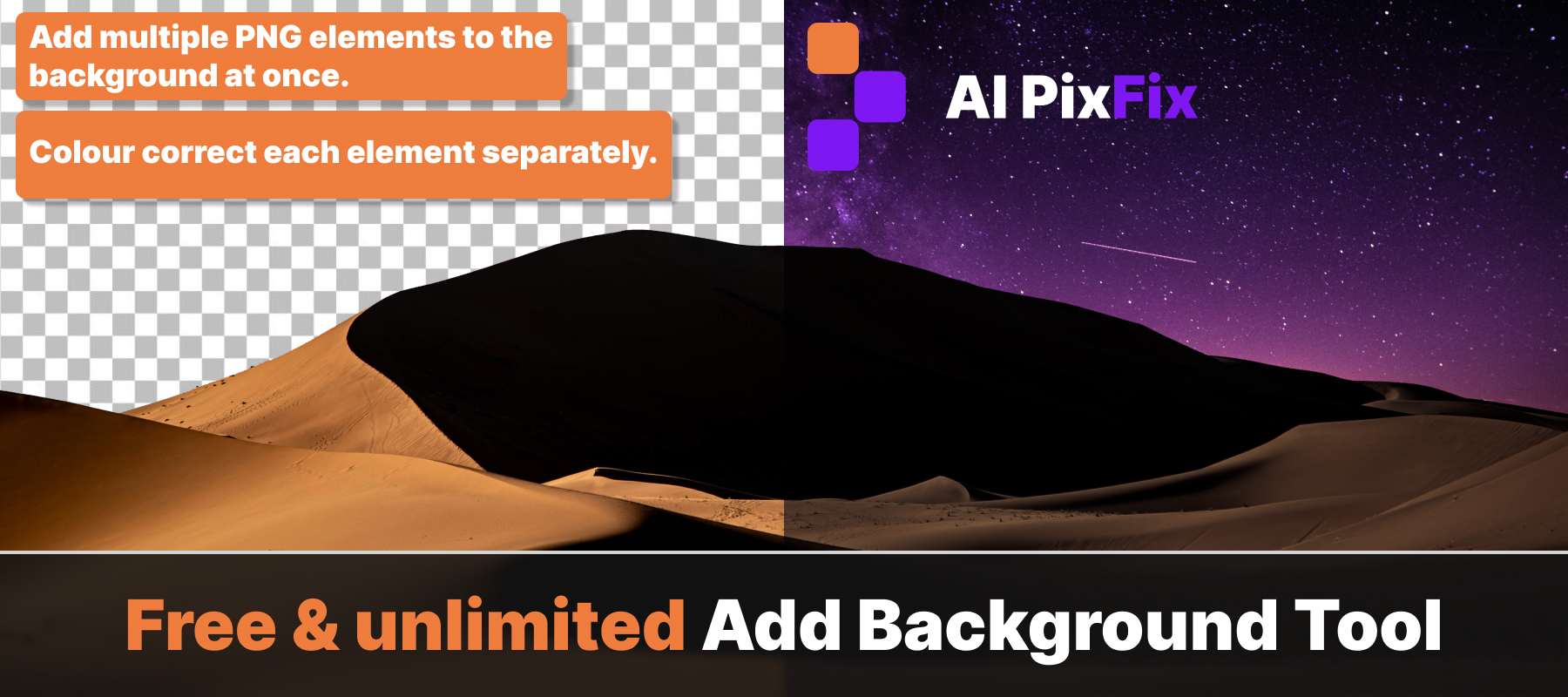
Per-layer color correction — the part that stops the cutout looking pasted on
The reason most quick composites look fake is a temperature mismatch: a subject shot under cool studio light, dropped onto a warm sunset backdrop, reads instantly as a paste-up. The human eye picks up colour temperature before it picks up edge quality. Fixing it in the compositor — and fixing it per layer — is what turns a cutout into a believable photo.
Each subject in the editor has its own independent color-correction tab, and the background has its own. Adjusting one never touches the others — that is the key difference from a global photo filter, which would shift the whole frame at once and re-introduce the mismatch from a different angle.
Match the overall luminance of the subject to the backdrop. A subject lifted from a bright outdoor shot usually needs −10 to −25 to settle into an indoor or evening backdrop.
Tune how punchy the subject is relative to the new background. Soft, low-contrast backdrops usually want a small contrast pull-down on the subject so it doesn't pop unnaturally.
Bring colour intensity in line with the rest of the frame. A subject from a vivid stock photo on a muted backdrop almost always needs −15 to −30 saturation to read as one scene.
Rotate the colour wheel for that one layer. Useful when the subject's overall colour cast disagrees with the backdrop — say, a slightly green skin tone against a warm wall.
Warm up or cool down the subject without touching the rest of the composite. This is the single most useful slider for matching outdoor / indoor / studio mismatches and is what most quick compositors don't expose at all.
Wrong call? Undo and redo are wired to every adjustment, so experimenting is free. The Reset button on each tab clears that one layer's settings without touching the others.
Photoshop and Figma can do this too — when a focused tool is faster
Adobe Photoshop and Figma can both place a transparent PNG on a new backdrop. Photoshop offers layers, masks, and adjustment layers; Figma offers frames, fills, and image masks. Both are powerful, general-purpose design suites, and if you already live inside one of them every day, that is the right tool for you.
For the rest of us, those suites cover hundreds of features that have nothing to do with putting one subject on one new background. The setup cost is real: an account, a workspace, a project file, an artboard, a layer panel, and the question of where exactly the colour-correction adjustments live. Someone who just wants a clean composite for a marketplace listing or a social post is paying for an entire toolkit to use one corner of it.
The online background swap tool flips that ratio. Only the controls that this one task actually needs are on screen — upload, place, match colour, download. There is no project file, no panel hierarchy, and no learning curve in the way; a first-time user typically gets to a finished composite on their first try, because the interface has nothing else to figure out.
No sign-up, no limits, no watermark — runs in your browser
Compositing the layers, applying color correction, and exporting all happen through the HTML Canvas API directly in your browser. Your transparent PNG and the new background photo are read as local files, composited on a Canvas, and downloaded back to your device. Nothing is uploaded, nothing is stored between sessions, and the tool keeps working with the network unplugged once the page has loaded.
Because there is no per-image server cost, there is no reason for restrictions. AI PixFix adds no watermark to the exported file, applies no daily cap, and requires no sign-up. The PNG or JPG you download is the exact composite you built — at the dimensions of the background image you supplied.
The alpha compositing math the tool uses is the standard one — the same source-over blend used by every modern rendering pipeline — so the edges of your transparent PNG come through exactly the way they were authored, with no posterisation or fringe artefacts introduced on the way to the final file.
Frequently asked questions
Do I need a transparent PNG to use the tool?
It works best with a transparent PNG (a PNG that already has an alpha channel — meaning the background pixels are see-through). If your subject still has a solid background, remove it first with a background remover, then bring the cutout into the Add Background tool. JPG and WebP files are accepted as inputs as well, but they will sit on the new backdrop as opaque rectangles unless they are already cut out.
Can I place more than one subject on the same background?
Yes — up to five separate transparent PNG subjects on one backdrop. Each subject can be moved, scaled, and rotated independently, and each one has its own color-correction settings (brightness, contrast, saturation, hue, temperature) so they all match the new background without affecting one another.
Are my photos uploaded to a server?
No. The tool runs entirely in your browser. Your transparent PNG and the new background image are read locally, composited on a Canvas, and downloaded back to your device. Nothing is uploaded, nothing is stored between sessions.
Is there a sign-up, a daily limit, or a watermark?
None of the three. No account is required, there is no daily cap on how many images you can process, and the exported PNG or JPG carries no watermark or branding.
Which output formats can I download?
PNG and JPG. Pick PNG when you want to preserve transparency in any leftover empty regions, and JPG when you want a smaller file for the web — the tool exports JPG at quality 0.95 to keep it visually clean.
Drop your transparent PNG, drop the new backdrop, match the colours per layer, download the file — no account, no daily cap, no watermark.
Add a new background to your PNG