April 30, 2026 · Photo Composition
How to Combine Multiple Photos into One Image Free
Combining multiple photos into one sounds trivial until you actually try it. Most online collage makers force you into a fixed grid template. Desktop editors give you full control but cost money and take an evening to learn. The middle ground — drop a few photos, arrange them freely, fix the color mismatch, export — is harder to find than it should be. This guide walks through how to do it in a browser, for free, with no account and no upload, using a free image collage maker that lets you compose on either an existing background photo or a fresh canvas at any size.
Why people combine multiple photos into one image
The intent behind “combine photos” is rarely “make a 4×4 grid.” The actual jobs people are trying to do break down into a few patterns:
- Product mockups — drop a packshot onto a lifestyle background, scale and rotate to fit.
- Before-and-after comparisons — two photos, side by side, on one shareable image.
- Moodboards — six to ten reference shots arranged on a colored canvas with breathing room.
- Social posts — multiple subjects on one fixed-aspect canvas (1:1 for Instagram, 9:16 for stories).
- Family or team composites — combining people who weren't in the room at the same time onto a single backdrop.
All of these need three things: a base, free placement, and per-layer color matching. Grid-based collage makers fail at job one. Filter-only photo apps fail at job three. The tool described below — built specifically to merge images freely rather than slot them into a template — covers all three.
Background photo vs custom canvas — pick the right base
The first decision when you combine photos is what they sit on. There are exactly two useful answers, and the wrong one wastes an hour:
Background photo
One image is the obvious base — a room, a landscape, a flat-lay, an existing collage. Other layers go on top. The canvas inherits the dimensions and aspect ratio of that background photo, so you don't pick a size yourself.
Custom canvas
No natural base — a moodboard, a product grid, a before/after panel, a fixed-aspect social post. You pick orientation (square, landscape, portrait), aspect ratio (1:1, 16:9, 4:3, 21:9, 9:16, 2:3, 3:4, 4:5), exact pixel size, and any background color via palette, hex input, or screen eyedropper.
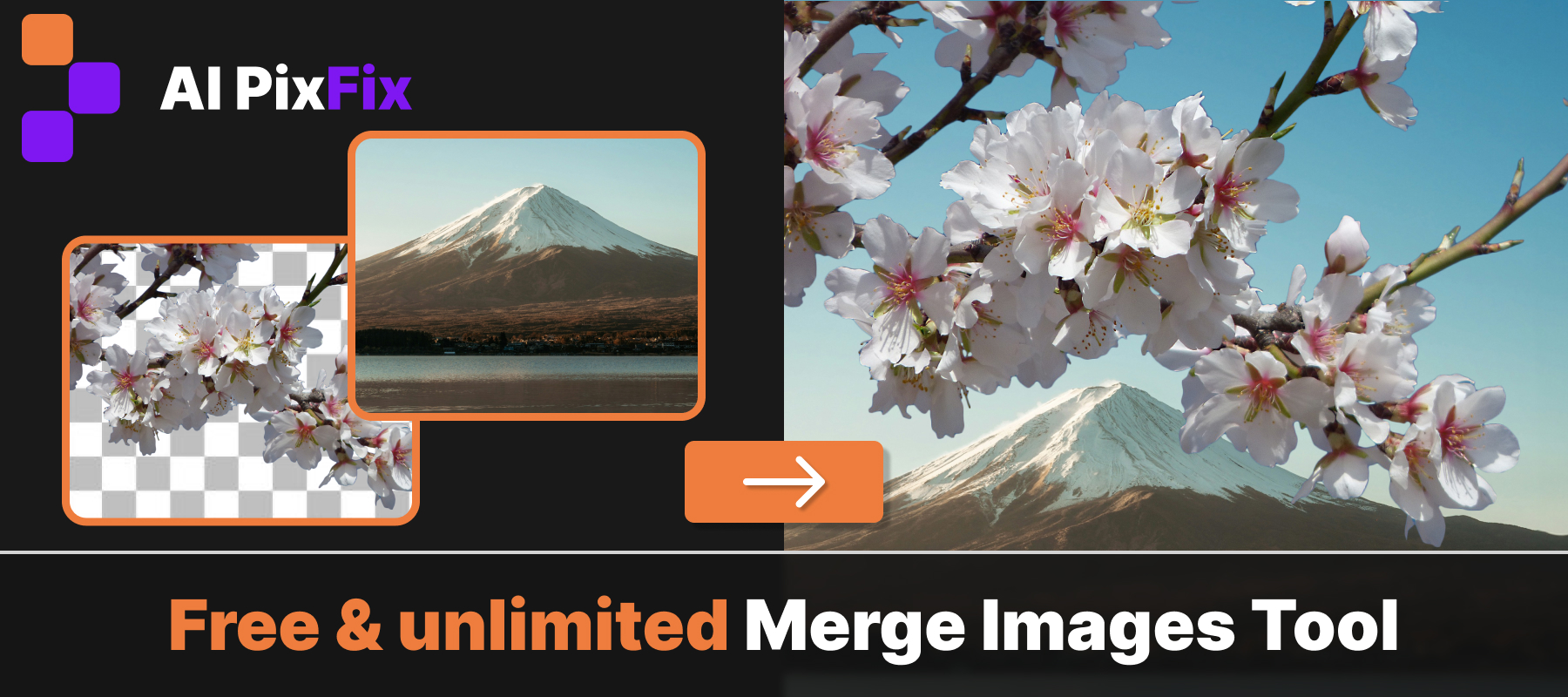
How to combine multiple photos step by step
Drop your photos on the left
Up to ten images at once — PNG, JPG, or WebP. Transparent PNGs and WebPs work especially well because they layer cleanly without rectangular halos.
Pick your base on the right
Choose a background photo or a custom canvas. For custom canvas, pick orientation, aspect ratio, exact pixel size, and a background color (palette, hex, or screen eyedropper).
Arrange the layers
Drag each photo into position. Resize from any corner, rotate freely, and reorder front-to-back through the layer list. Zoom up to 300% for pixel-precise placement.
Color-correct per layer
Open a layer's filter panel: brightness, contrast, saturation (-100 to 100), hue shift (-180° to 180°), and temperature. This is what stops the result from looking like a collage.
Save the result
Click Save result and export as PNG (lossless, transparent areas preserved) or JPG (smaller, white background).
The whole loop runs on the canvas API — see MDN's Canvas API reference for what the underlying primitives actually do.
Why per-layer color correction is what sells the composition
The thing that gives away a quick collage isn't the placement — it's the color. A photo shot at golden hour and a photo shot under fluorescent office light will never look like they belong on the same canvas without correction. Five sliders fix this:
- Brightness — pull a too-dark layer up or knock a blown-out one down.
- Contrast — match the punch of layers shot in different lighting.
- Saturation — desaturate a layer that looks too vivid against the rest, or boost a flat one.
- Hue shift — rotate a layer's color wheel to match the dominant tone of the others.
- Temperature — warm or cool a layer toward the rest of the composition.
Each layer gets its own slider set. The compositing itself is straightforward alpha compositing— what changes the result is what each layer looks like before it's composited. Spend two minutes on color correction; it's the difference between “obvious collage” and “single photograph.”
Why a browser-based combiner beats uploading
Combining photos is the kind of task where uploading feels especially silly. The math is all 2D affine transforms and pixel blits — there is no AI model that needs a server, no heavy lifting that justifies a round trip. The AI PixFix merger runs the entire composition pipeline on the canvas in your tab. Practical consequences:
- Source photos never leave your device — useful for product shots under embargo, family photos, work-in-progress designs.
- No file size limits beyond what your browser can hold in memory — for ten typical phone photos, easily.
- Output is generated locally and saved through the standard browser download path — no server-side rendering queue.
- Works offline after the first page load. The page is just HTML and JavaScript.
How freeform composition differs from grid collage makers
Most free online collage tools are grid-based: pick a template, drop photos into slots, done. That works for the narrow case of evenly-tiled grids. For everything else — overlapping layers, custom dimensions, color-matched composites — the template gets in the way. A freeform browser-based image merger flips the model: the canvas is empty, you decide where every layer goes.
| Feature | Freeform composer | Grid collage tools |
|---|---|---|
| Layer placement | Drag, resize, rotate, reorder | Locked to template slots |
| Custom canvas size | Any pixel size + aspect ratio | Template-defined |
| Per-layer color correction | Brightness, contrast, saturation, hue, temp | Global filters only |
| Background image as base | Yes | Rare |
| Image uploaded to server | No — runs in browser | Usually yes |
Frequently asked questions
How many photos can I combine into one image?
Up to ten photos per composition. Each one becomes its own layer that you can drag, resize, rotate, reorder, and color-correct independently. Ten is enough for the vast majority of collage, mood-board, and product-mockup use cases without making the canvas unmanageable.
Should I use a background photo or a blank canvas?
Use a background photo when one image is the obvious base — a room shot you want to populate with furniture, a landscape you're adding subjects to, an existing collage you're touching up. Use a custom canvas when there is no natural base — moodboards, product grids, before/after comparisons, social posts that need exact dimensions. The custom canvas lets you pick orientation (square, landscape, portrait), aspect ratio, exact pixel size, and any background color.
Can I correct the color of each photo separately?
Yes. Every layer has its own brightness, contrast, saturation, hue (-180° to 180°), and temperature controls. This matters because photos shot at different times of day, on different cameras, or under mixed light look obviously mismatched once you stack them. Per-layer correction is what makes the final image look like one photo rather than a collage.
Do my photos get uploaded to a server?
No. The tool draws every layer onto an HTML canvas inside your browser tab. Your images never leave your device. There is no account, no quota, no watermark, and the tool keeps working even if you go offline after the first load.
What file format is the final image saved in?
PNG (lossless, supports transparency) or JPG (smaller files, white background where transparency would be). PNG is the better choice if you plan to keep editing the result; JPG is the better choice if the file needs to be small for email or web upload.
Free, unlimited, no account, nothing uploaded. Drop your photos, pick a base, arrange and color-correct, save. The whole thing takes two minutes once you know the layout.
Merge images now